




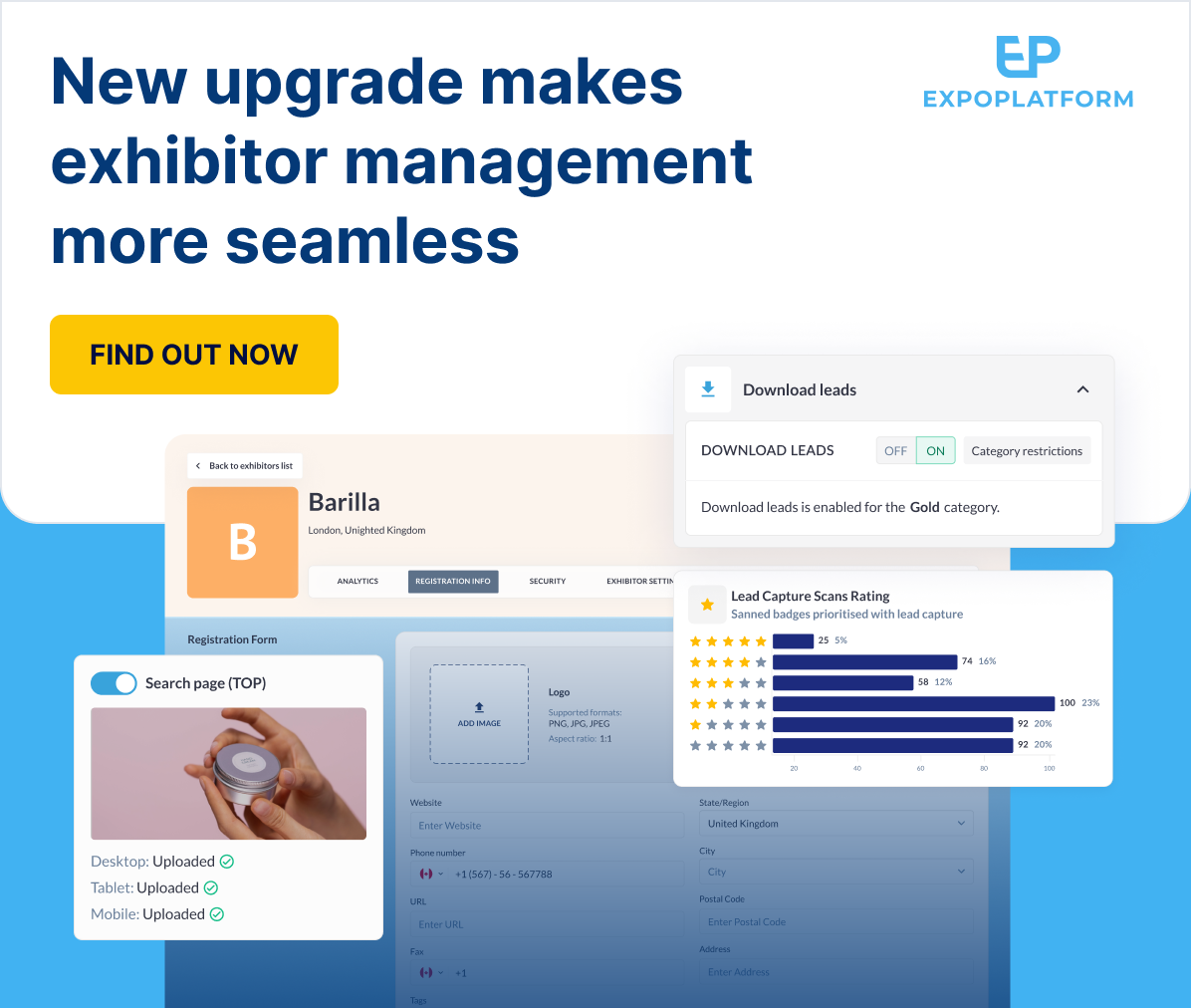
Seamless exhibitor management is key to successful event experiences.
That’s why we’ve brought in a major upgrade to our platform that fuels an intuitive, user-friendly interface to streamline your whole process. Here’s what it means:
✅ Simplified access to exhibitor accounts
✅ More control over managing, adding and editing exhibitor details
✅ Improved analytics
But the good news doesn’t end there – we’ve also introduced new smart networking features to deliver targeted connections and meaningful interactions.
This is how it will maximize event engagement:
? Smart exhibitor recommendations: Connect attendees with the best-fit exhibitors for increased engagement.
? Multilingual notifications: Reach every attendee by sending key information in their language.
? Streamlined chat filtering: Simplify reconnections by allowing users to filter for past chat interactions.
? Intelligent meeting matchmaking: Make scheduling a breeze with powerful filters that connect the right attendees and exhibitors.
? Prioritized connections: Help attendees discover valuable contacts instantly with intelligent sorting on Marketplace and Delegate pages.
Read below for the full details.
REVAMPED EXHIBITOR MANAGEMENT HUB
Exhibitor Accounts: Header and Footer
What is it?
The team has revamped the Exhibitor account page under the Management tab, making it more intuitive for the organizer to view exhibitor information in a more aligned and clearer way.
The team has added Header and Footer to the page. The header section consists of the following sections:
- Logo: Can be edited from the Registration Info Tab. If no logo is uploaded then it shows the first letter of the exhibitor name as the placeholder image
- Exhibitor name: Can be edited from the Registration Info Tab
- Exhibitor city and country: Can be edited from Registration Info Tab
- Navigation menu with items: Analytics, Registration info, Security, Exhibitor settings, Sponsorship, Team members, Floor plan. If these settings are disabled for the exhibitor at the Exhibitor or category level, these tabs under the navigation menu are still visible with no details. But if these settings are turned off from Global or Local Management then these tabs will not be visible on the navigation menu
- Back to exhibitor list button: Redirects the organiser to the exhibitor list page
- Customer service“ button: Redirects the organiser to the frontend profile of the exhibitor
- Action dropdown menu: Functionality of the menu item under Action button remains the same, the team has clubbed all the action button under one tab for a more aesthetic look on the edit exhibitor page
Footer of the page consists of Save and Cancel button. If the organizer leaves the page without saving the changes made the system pops up a warning message that the changes are not saved
What are the benefits?
- Provides the Exhibitor edit page with a more aesthetic and synchronized appearance.
Exhibitor Accounts: Registration Info
What is it?
The team has revamped the Exhibitor account page under the Management tab, making it more intuitive for the organizer to view the registration information in a more aligned and clearer way.
A new tab Reg info is added on the Exhibitor edit page that list all the fields added to the exhibitor registration pipeline.
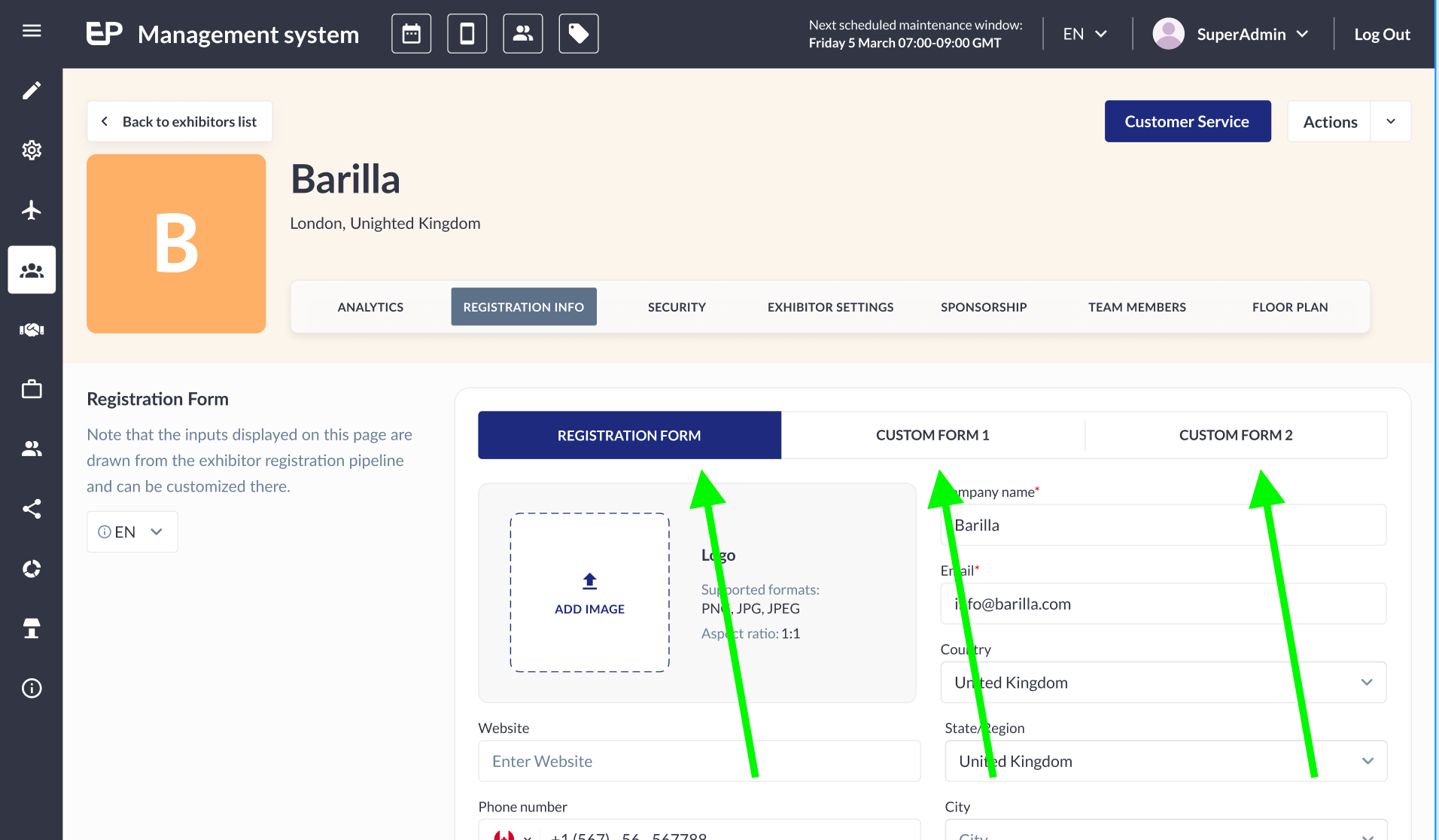
Apart from this it has the following other features
- Depending on how many tabs were added (and enabled) in the Registration pipeline the same number of tabs will be visible on exhibitor edit page
- Ability to pick Registration form language (Multilanguage) by choosing from the drop-down setting. By default the language in the manager panel will be selected
- The layout of the reg info will depend upon the grid type used in the exhibitor reg pipeline
- Can upload/replace logo from the exhibitor edit page
What are the benefits?
- Ease in adding stand details for the exhibitor profile making for a clearer and more synchronized view
Exhibitor Accounts: Security page
What is it?
The team has revamped the Exhibitor account page under Management tab, making it more intuitive for the organizer to view the exhibitor information in a more aligned and clearer way.
The Security tab consists of Exhibitor Password Change and Login Information of the exhibitor.
Exhibitor Password: allows organizer to change and send the new password to the exhibitor by clicking on send to exhibitor email. The organizer can click on the Save button if he wants to create and save the password without intending to send the email to the exhibitor.
Organizer is able to send the password even if OTP authentication is enabled
If the password created doesn’t meet the requirement the system shows an error
Login Information: This section consists of a table that captures the login information for the exhibitor showing the Date and Time of login along with the IP address and Device version of the app or browser. It also captures the source of logins like Customer Service or Exhibitor Login
Login actions done via the integrations – SAML 2.0 Login Authorization, Reach5 and IRIS – are also counted.
What are the benefits?
- Provides the Exhibitor edit page with a more aesthetic and synchronized appearance.
Exhibitor Accounts: Settings page
What is it?
The team has revamped the Exhibitor account page under the Management tab. All the exhibitor-level settings options have been moved to the Exhibitor Settings tabs making it easier to enable or disable any settings.
Few of the existing exhibitor level settings have been renamed like Do not Allow Team Member is now Allow Team Member, similarly other settings are being renamed too.
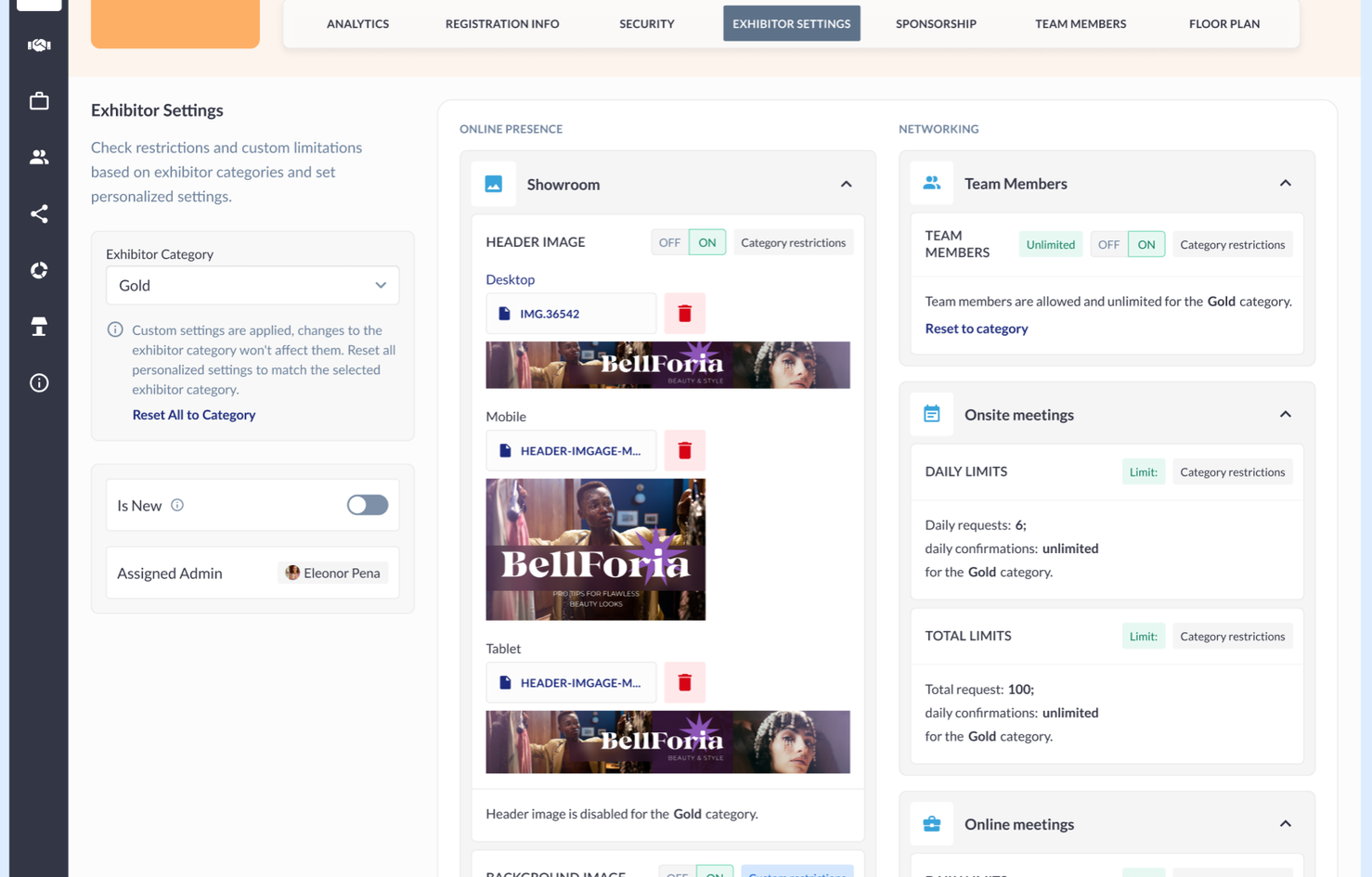
Two new tabs, Video and Download Leads added to the settings block, where download leads define whether the exhibitor and their team members can download leads.
Settings that are applied at the global exhibitor level, with no control at the category level but with control at the individual exhibitor level. When the global setting is OFF, this option will be hidden on the Exhibitor page.
Organiser has the option to set all the exhibitor setting based on the exhibitor category selected by clicking on Reset All to Category, if no custom changes are applied at the exhibitor level
The main container tab is divided into Online Presence and Networking like we have it under Exhibitor Category (/admin/registration/e-categories) and can be set similarly as we do it at category level
What are the benefits?
Provides the Exhibitor edit page with a more aesthetic and synchronized appearance.
Exhibitor Accounts: Sponsorship page
What is it?
The team has revamped the Exhibitor account page under Management tab, making it more intuitive for the organizer to enable the sponsorship opportunities for the exhibitor profile. Note: This page is empty if Sponsorship is disabled for the exhibitor.
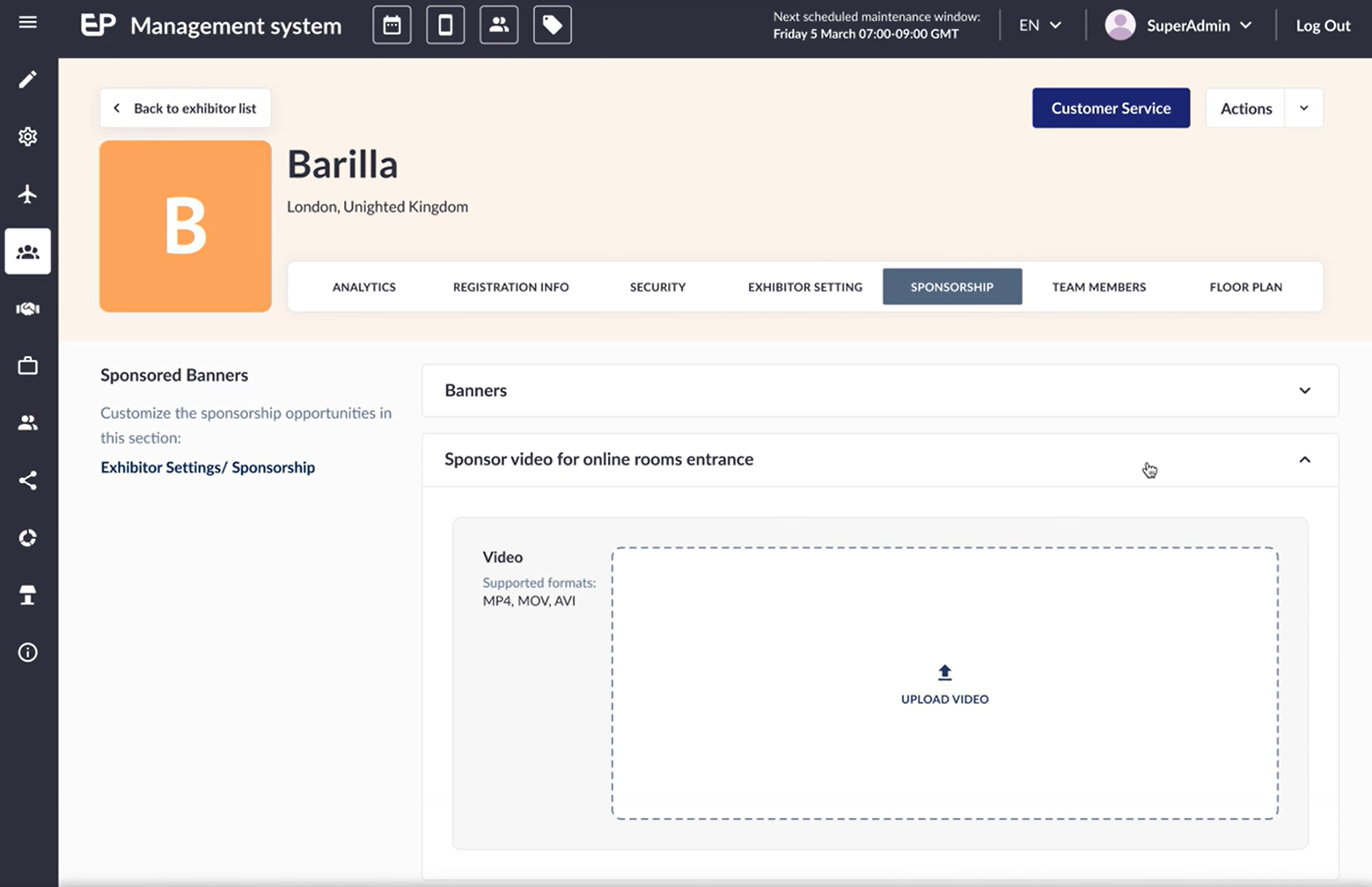
This page is divided into two sections:
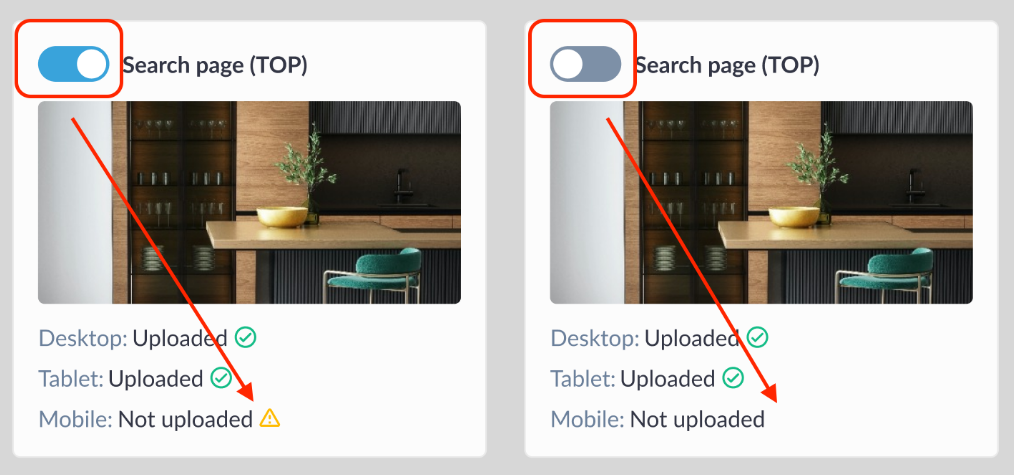
(i) Banner: We can upload banners like previously on all pages. The banner card has a toggle that turns the banner on and off to manage its visibility. Hovering the cursor on the image placeholder allows the organizer to upload the image for all devices. Once the banner is uploaded, organizer gets the option to either replace or delete the banner. Also, system displays a green checkbox if the image is uploaded correctly and a warning icon if a certain image is not uploaded when the banner is enabled.
(ii) Sponsor video for online room entrance: Likewise, organizers can upload videos for online room entrances. The system also lists the supported formats for video uploads.
What are the benefits?
- Ease in enabling sponsorship opportunities for the exhibitor profile on Sponsor Page
Exhibitor Accounts: Team Member page
What is it?
The team has revamped the Exhibitor account page under the Management tab, making it more intuitive for the organizer to add and manage team member details.
All team member data will now be visible under the team member tab on the exhibitor edit page. The organizer can add, edit, delete and view profile of the team member from this section.
To manage the number of team members allowed, the organizer can click on “Exhibitor Setting/Team Member,” which will redirect them to the Exhibitor Setting tab. From there, they can edit the allowed team member limit.
The Action tab allows the organiser to Edit, Delete, Print Badge and View Profile for that member.
If no team members are added or allowed to be added, this section will be blank. All team members in the table are listed in ascending alphabetical order (A-z). TM search is possible by: name, surname, email or job title.
The team member adding form includes not only the 6 default fields but also all fields from the visitor registration form with the “Use for team member creation” parameter checked.
Contact Person section allows the organiser to add the details of the contact person for account and invoicing purposes.
What are the benefits?
- Ease in adding and managing TM details
Exhibitor Accounts: Floor Plan page
What is it?
The team has revamped the Exhibitor account page under the Management tab, making it more intuitive for the organizer to enable and add stand details for the exhibitor. A new tab Floor Plan is added on the Exhibitor Edit page Note: This page is empty if Floor Plan is not enabled under Management Floor Plan.
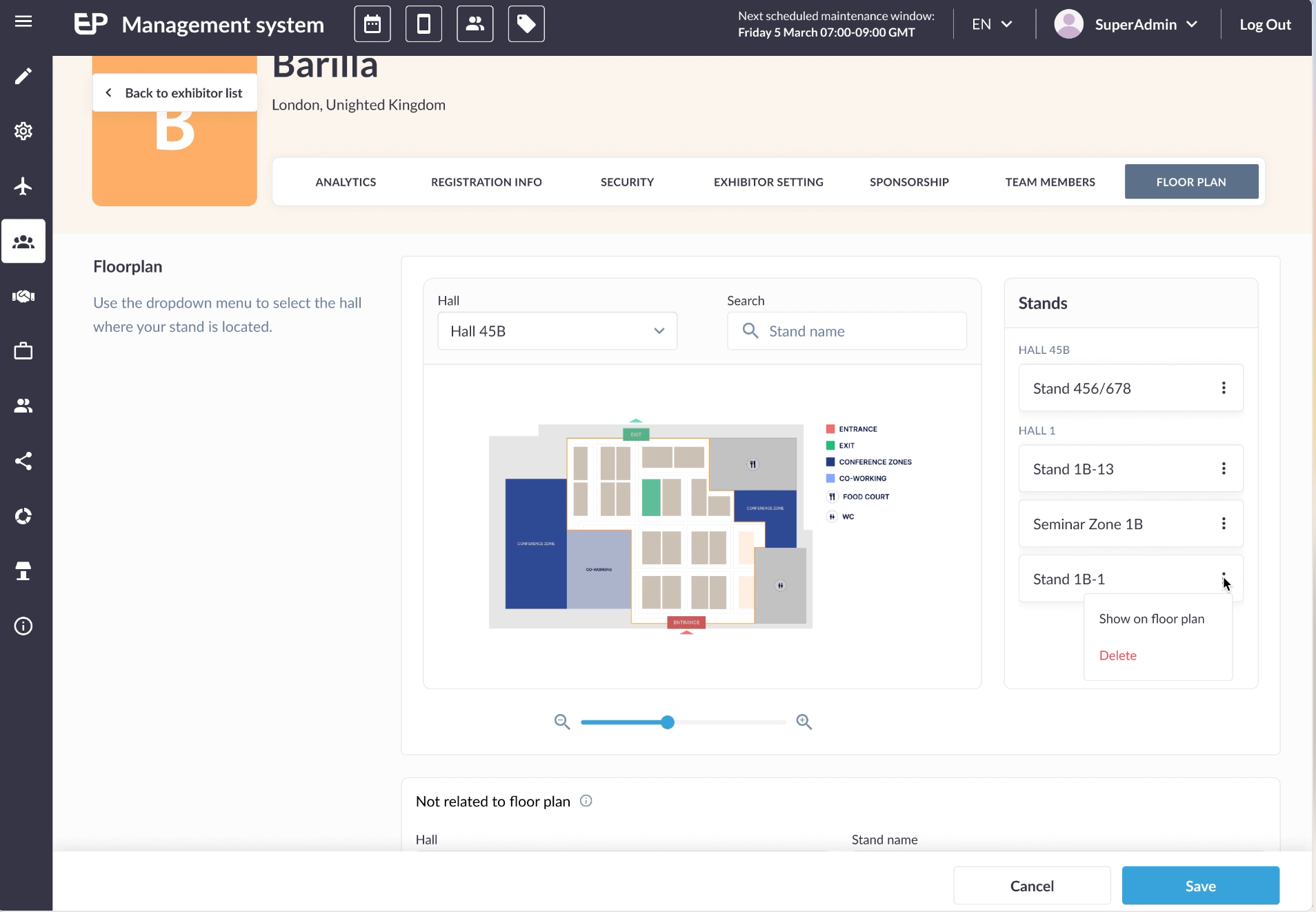
Organizers have the ability to perform the below tasks:
- Search Hall from the Hall tab drop-down menu and switch between different halls created on the floor plan
- Can search Stand via using stand name
- Can Add/Delete the stand for the exhibitor from the Stand search tab
- The added stand is shown on the stand block on the right side of the screen
- The selected stand gets highlighted on the floor plan image
- Can select stand directly from the hall image and once added it is shown under the stand column on right hand side of the screen
- Can choose to show a stand on the Floor plan from the Stands Column.
- If a stand is deleted, it disappears from the list, and the Exhibitor is no longer related to the deleted stand.
What are the benefits?
- Ease in adding stand details for the exhibitor profile making it a clearer and more synchronized view
Exhibitor Accounts: Analytics page
What is it?
A new tab Analytics has been added to the exhibitor edit page, which gives detailed analytics of that very exhibitor and its team members.
General Graph Description
- If the exhibitor is deleted from the event his stats are not included in measuring an average value per exhibitor
- There are no time limitations/filters by dates, the graph shows the time period since when the exhibitor was added
- If any object (like chat or product) is deleted, all stats about this object are deleted also in analytics.
- When a user unfavorites an exhibitor, the favorite should be deducted from their count in our graph.
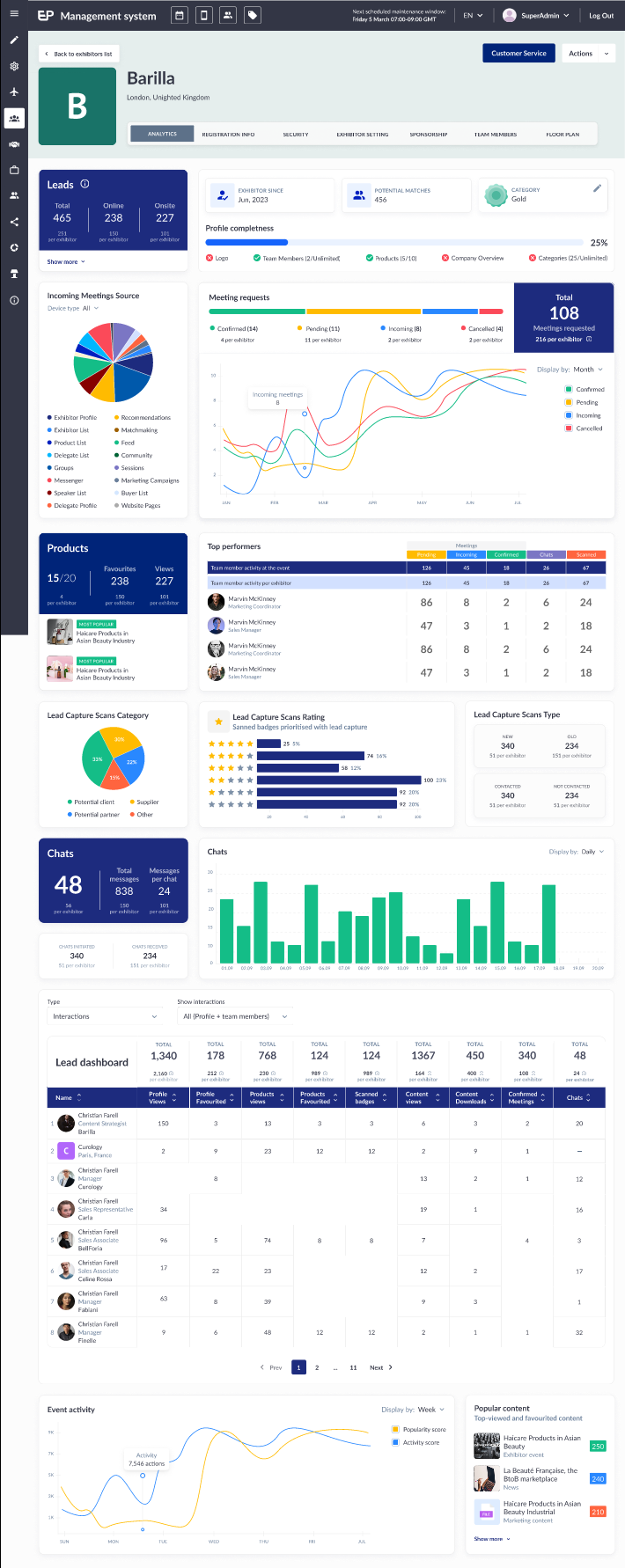
The Analytics page shows stats for the following actions
- Leads
- Profile Stats
- Incoming Meeting SOurce
- Meeting Request
- Products
- Top Performers
- Lead Capture
- Chats
Leads
- Shows the total leads generated by this exhibitor, split into Offline and Online leads. Also shows correlated values in average per Exhibitor
- It also shows the lead generation sources
- Lead generation sources show the unique actions were done by users
- The system displays the average number of leads per exhibitor for the event, allowing admins to compare an individual exhibitor’s lead count with the event average.
- Exhibitor leads come from actions taken on their profile as well as from their team members’ activities.
Profile Stats
- The system accurately displays the date an exhibitor was first added to the platform.
- The system calculates and displays the number of matches found by the Matching Mechanism
- Potential matches include both visitors and other exhibitors
- The category is displayed with a standard icon and a system-assigned random color.
- There is a quick redirect functionality to the Settings tab for changing the category
Incoming Meeting Source
- The system displays the sources of incoming meetings for the current exhibitor same as Meetings tabs on Analytics page
- If no meetings have originated from a particular source, that source is not displayed in the list.
- The system allows sorting by “All,” “Web platform,” and “Mobile app”
- On hover, a tooltip displays the detailed data related to the source, such as the number of meetings generated from that source.
- Meetings of an exhibitor also include those of their team members.
Meeting request
- The system shows the aggregate and displays the total number of meeting requests associated with the exhibitor and all their team members.
- The graph shows the progression of total meeting requests over time for the exhibitor, capturing the dynamic nature of meeting requests.
- It includes both regular and table meeting stats
- When the autoconfirm setting is applied, pending meetings is excluded from the total counts and graphical representation
Products
- The system displays the number of active products with the set limit for the exhibitor.
- Display how many times products have been favorited and viewed, ensuring only unique actions
- Displays 2 Most Popular Products based on number of times the product is favorited
- If products have an equal number of favorites, the product that reached the top first will be listed.
Top Performer
- Display the top four performers among the exhibitor’s team members based on the sum of all recorded interactions.
- Display the average number of actions performed by all team members of the exhibitor at the event, providing insights into the exhibitor’s overall engagement level.
Lead Capture
- The system displays the categories chosen during lead scanning
- Display the rating (number of stars) assigned during lead scanning in the app
- Show the type of lead captured during scanning
- Include a correlated average value per exhibitor at the event for both the number of scans and the types of leads captured
- If Lead Capture is disabled, the entire section displaying scan statistics is hidden
Chats
- This section displays the total number of chats for that very exhibitor
- Also, displays the total number of messages and the average number of messages per chat
- Shows correlated average values per all Exhibitors at this event.
- Hovering the cursor over the bar graph shows the number of chats initiated on that day, week or month.
Event Activity
- Shows dynamic of Activity and Popularity score over time for the exhibitor and its team members.
- This graph is not shown in 2 cases – all values in admin/interaction scores (Activity and Popularity score) are 0, or Leaderboard module is turned off from module management
Content
- Shows top Exhibitor News (views), Exhibitor Events (booked) or Downloaded Content for the Exhibitor ranked by the values.
- It shows the top 3 content for the exhibitor, organizer can click on show more to see the top 6 popular content
What are the benefits?
- Ease in enabling sponsorship opportunities for the exhibitor profile on Sponsor Page
Leader Dashboard
What is it?
We have revamped the Leader Dashboard on the front end to improve the readability of leads and data for our end users.
The key difference is we show checkmark for one-time actions and numbers for repeated actions. It also shows average values per Exhibitor on this event. Added the drop-down to show Types and Interaction data
Dashboard related to sponsor stats (such as Sponsors pop-up interactions, Banner statistics etc), is displayed if the exhibitor is also a sponsor
Exhibitor has an option to select a company or a member separately for the table in the “Interactions” tab.
For each column, the total number of user interactions is aggregated, and the cumulative total is displayed in the “Total” fields above the board.
Tooltips appear every time we hover over the number of actions or checkmarks.
For featured product interaction, often, team members are associated with the sponsor’s products. If a user interacts with those products, any actions involving the team member should be counted as interaction stats for the sponsor.
What are the benefits?
- Enhance the readability of leads and data for the end users.
SMART NETWORKING
Enhanced Networking through Intelligent Exhibitor Recommendations
What is it?
A new setting Recommend Related Exhibitors is added on the Recommendation tab under Networking & Matchmaking, if this toggle is enabled a pop up shows on the My Schedule or Team Schedule page with the list of recommended exhibitor based on users actions for scheduling meetings with.
The recommended exhibitor pop up appears only after the successful creation of the meeting with the exhibitor.
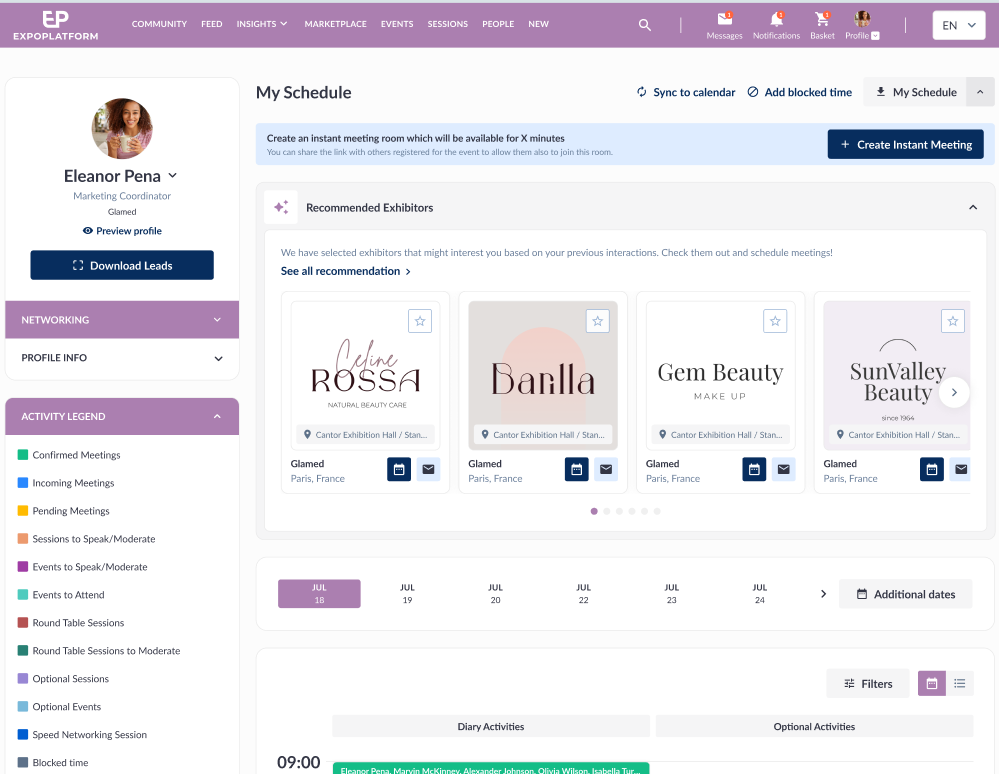
The Recommended exhibitor pop up list 20 exhibitors and each exhibitor card will have interactive buttons. The exhibitors are displayed according to user’s permissions settings. The “See all recommendations“ button redirects the user to the matches on the exhibitors page with “Recommended for you” turned ON.
We also have the Recommended Exhibitor block that appears above the date selector on the Schedule Page. The block is convertible, by default – unfolded. On clicking the header the block gets folded.
If the “Recommend Related Exhibitors“ setting is enabled and the “Enabled Online RecSys“ setting is disabled, the pop-up and block will not have any recommendations.
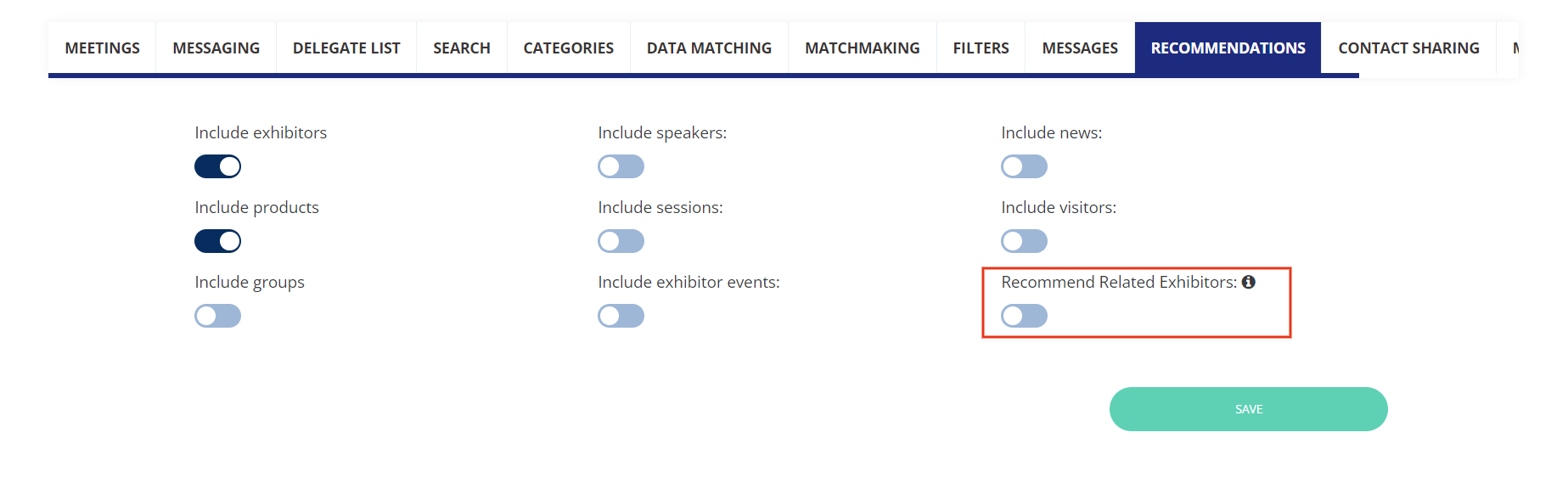
The “Recommended Exhibitors“ block and pop-up should not be displayed to Exhibitors and Team Members when the “Allow Exhibitor to Exhibitor Matchmaking” option is disabled.
What are the benefits?
- Ability of the system to present a dynamically generated list of similar exhibitors based users action
Multilingual Admin Notification
What is it?
Organiser can now send Admin/Push notification in multiple languages based on the languages enabled for the event. Language selector and default language depends on event settings.
For web: The user receives notification based on the language set in users profile: newfront/profile/settings
For App: Interface, notifications are always aligned with the device’s language settings,
The notification Title and message can be sent in the selected language.
On Admin Notification organiser can select the language in which the notification should be sent
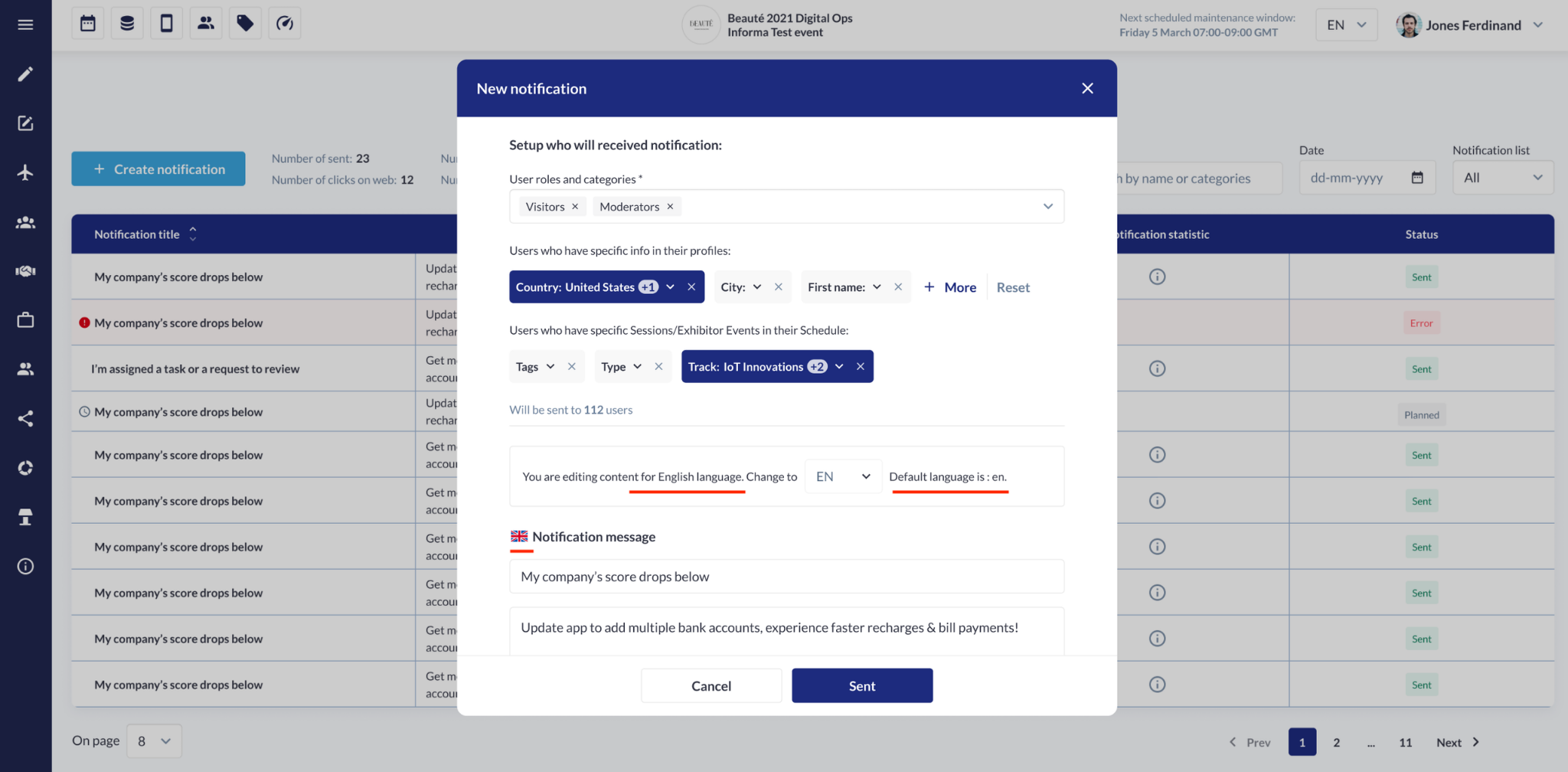
Default Language Organiser has the option to set the default language in which all the notification will be sent
Specific Language: Organiser can also configure specific languages for notifications to match user preferences. For instance, if an admin configures Spanish and French for notifications, these settings will be stored and used for users with matching language preferences
Dynamic Language Organiser can update language configurations, and the system will immediately use the latest settings.
End User (Web)
- Check if the user has selected a language other than the default in newfront/profile/settings.
- If a non-default language is selected, use this language for notifications.
- If the default language is selected, use the current browsing language for notifications.
- If a user’s preferred language is not configured, they will receive notifications in the default language
- For web we do not send notifications to non-logged in users.
End User (App)
- Account language (preferred language) refers to the language the user sets for themselves on the frontend.
- URL Added by Organizer and Open Access: Non-logged-in users lands directly on the specified in-app page.on clicking on the url
- URL Added by Organizer and Closed Access: Non-logged-in users is redirected to the login screen on clicking the URL added in the notification
- URL Missing and Open Access: Non-logged-in users land on the app’s home page.
- URL Missing and Closed Access: Non-logged-in users is redirected to the login screen.
What are the benefits?
- Capability to send Push Notification in Multiple Language based on the language set for the event
Networking Filters for Attendee and Exhibitor Lists (Chat)
What is it?
New filter option Existing Chat is added for the Attendee and Exhibitor under Display Filter on Admin Panel. The “Existing Chat” filters is included for pages: Delegates, Speakers, Buyers, Exhibitors, Pavilions, and Products.
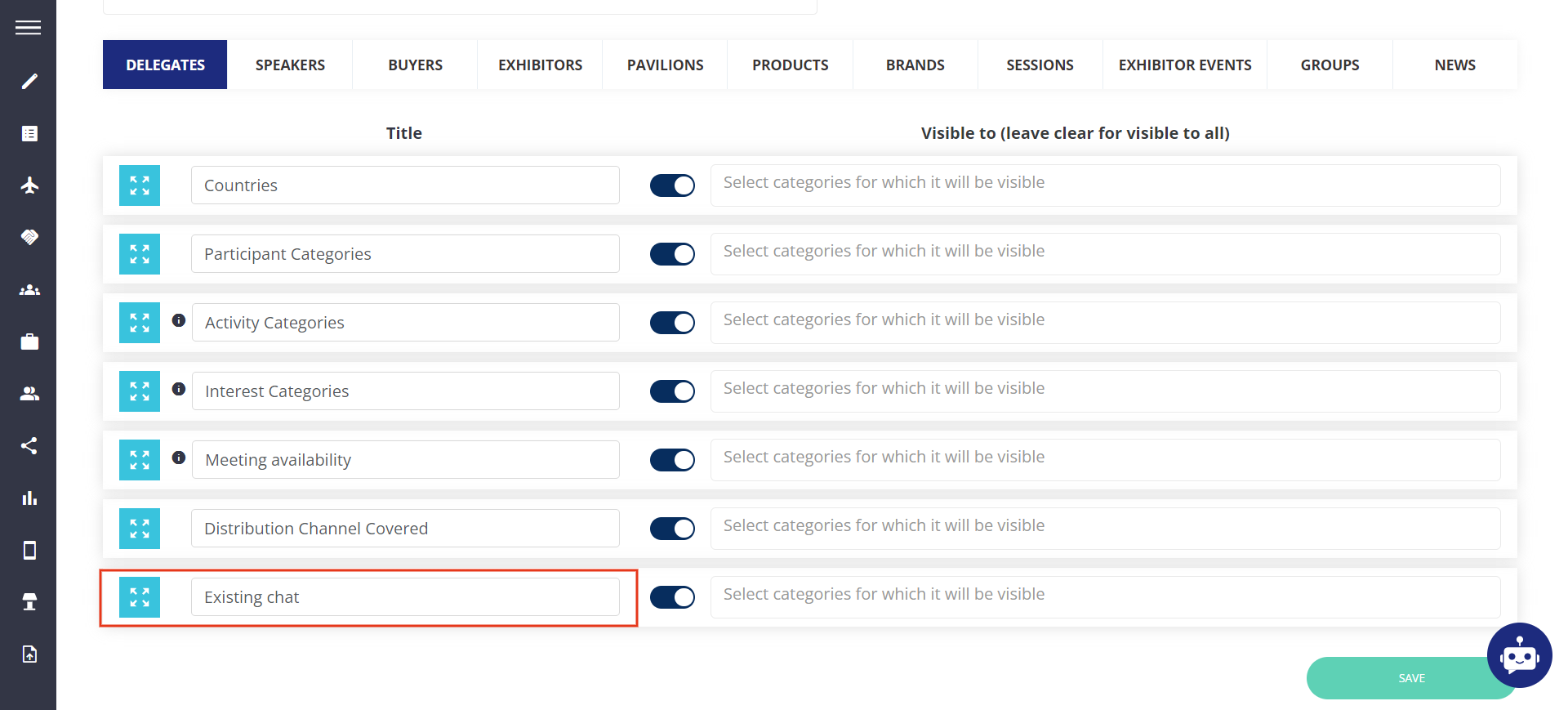
Default State: Off
On frontend these filters are visible based on the enablement on the Admin Panel. The “Existing Chat” filter option includes “People or exhibitors I’ve messaged” and “People or exhibitors who messaged me”
It works on OR logic between the “People or exhibitors I’ve messaged” and “People or exhibitors who messaged me”
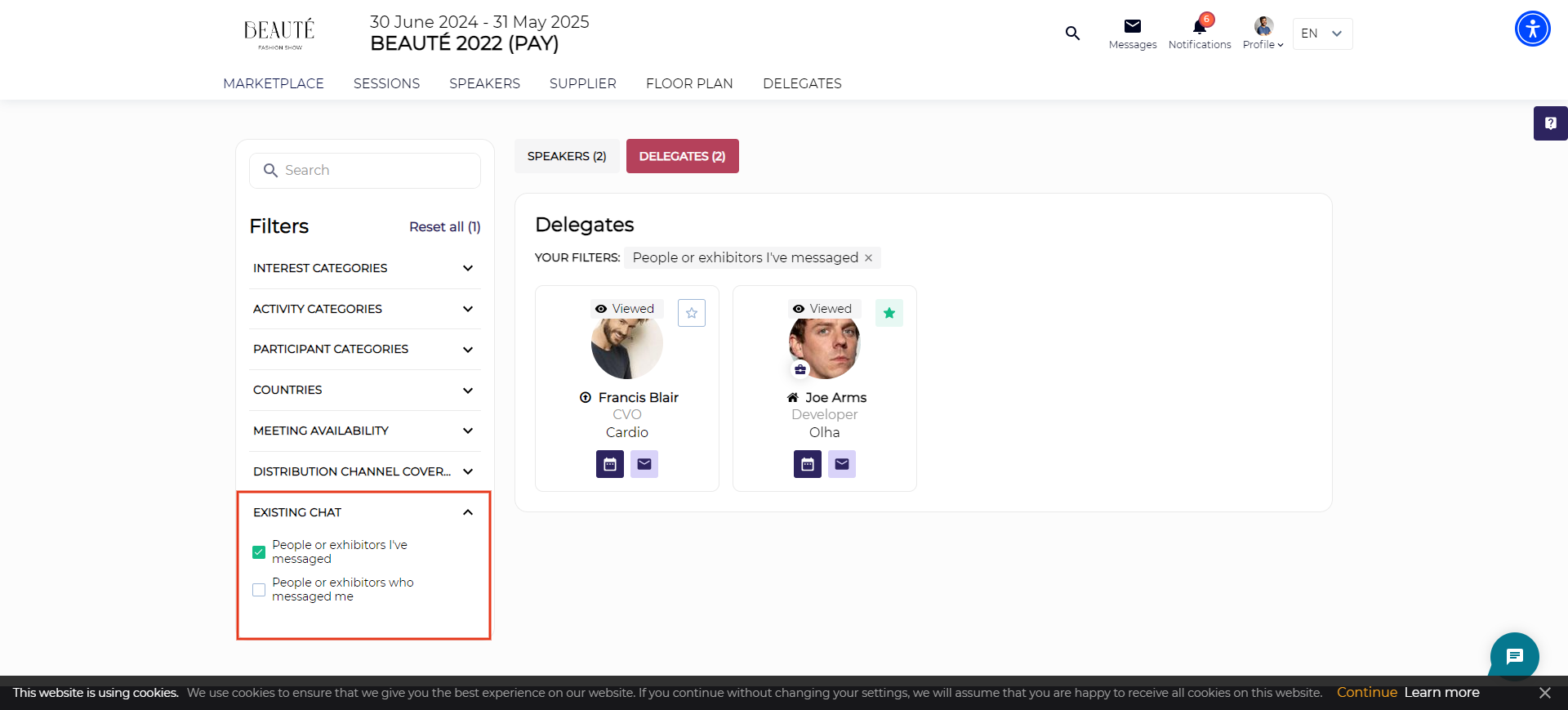
This filter is based on 4 scenarios
- Both Filters Selected: All chat cards initiated or received by the user are visible.
- Only “Initiated by Me” Selected: Only chat cards initiated by the user are visible
- Only “Received” Selected: Only chat cards received by the user are visible.
- No Filters Selected: All chat cards are visible regardless of initiation or reception.
Copy link to applied filters button is hidden when the chat filter is enabled
What are the benefits?
- Additional filter option added to the frontend to filter out the user data based on chat initiation and reception
Networking Filters for Attendee and Exhibitor Lists (Meeting)
What is it?
New filter option Existing Meeting Initiator“ and the “Existing Meeting Status added for the Attendee and Exhibitor under Display Filter on Admin Panel. The “Existing Chat” filters is included for pages: Delegates, Speakers, Buyers, Exhibitors, Pavilions, and Products.
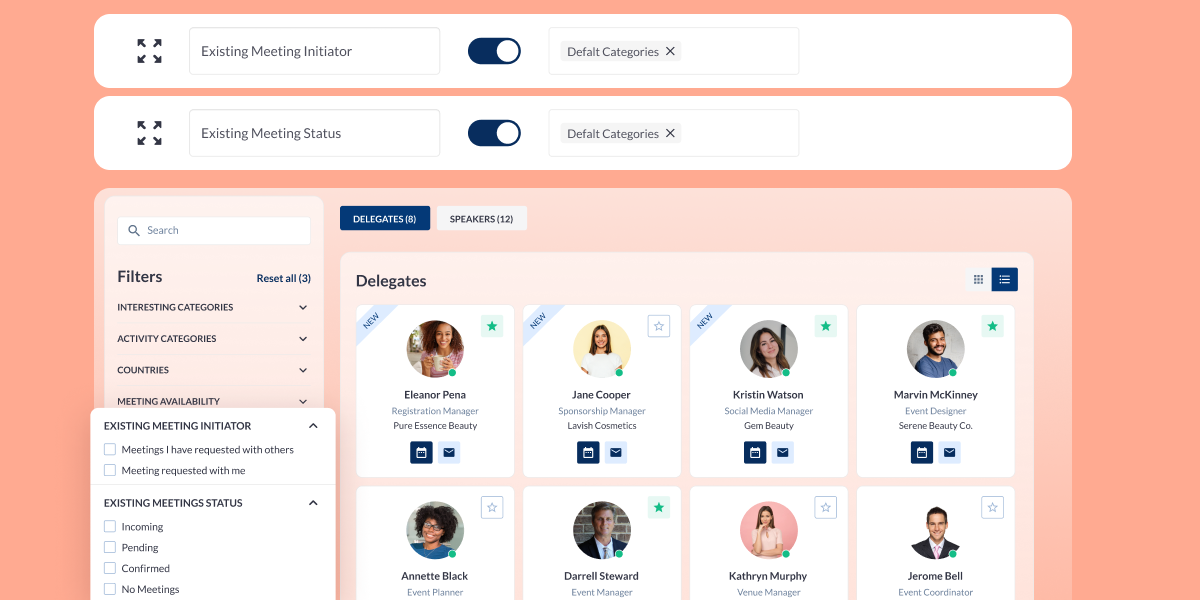
On frontend these filters are visible based on the enablement on the Admin Panel. The “Existing Meeting” filter option includes “Meetings I have requested with others and Meetings requested with me
- Logic between filters is AND.
- Logic between filter options – OR.
This filter factors in all Confirmed, Pending and Incoming meetings
- When no filter is selected, all cards, regardless of meeting status, are displayed.
- When “Confirmed” is selected, only cards with at least one confirmed meeting are displayed.
- When “Incoming” is selected, only cards with at least one incoming meeting are displayed.
- When “Pending” is selected, only cards with at least one pending meeting are displayed.
When user has multiple meetings with different statuses with an user, then that user will appear in every matching search results.
When the “Meetings autoconfirm” setting is turned ON, “Incoming” and “Pending” options is hidden
For exhibitor company account filtering results to check both meetings of Exhibitor or his Team Members.
What are the benefits?
- Additional filter option added to the frontend to filter out the user data based on Meeting initiation and meeting status
Matchmaking Sorting on Marketplace and Delegate page
What is it?
This feature allows the end user to sort the object data on Marketplace and Delegate page based on the Matchmaking algorithm. On frontend a new toggle Recommended for You has been added, which sorts the data on the page as per MM recommendation. If this toggle is turned off the data is displayed in alphabetical order (A-Z)
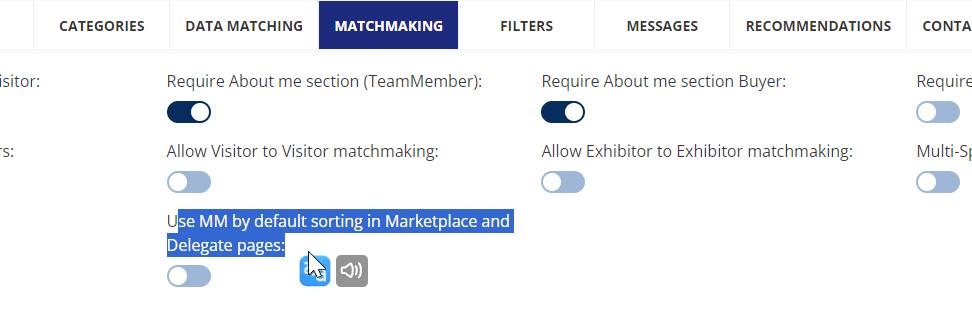
- The sorting on the Exhibitor and Product page is applied only to exhibitor and product and not to sponsored exhibitor and Products
- Recommended for You works with the filters as well
- If elastic search is turned off and the user is making a search, the results will be sorted in order A-Z and not as per the Recommended for you sorting option
- If Elastic search is turned on and the user is making a search request, the results will be sorted by elastic score & “Recommended for You” doesn’t work with the elastic search.
- When MM is disabled Recommended for You becomes hidden. The only sorting option in this case is alphabetical one A-Z
- If Allow Visitor to Visitor MMis turned off, the Recommended for You sorting doesn’t work, similarly it is applied to Exhibitor & Exhibitor MM is disabled
- In participant category settings if hide matchmaking on frontend enabled it doesn’t affect sorting
- If MM % is 0, in this case, we will have a random order.
- Unlogged users don’t see the Recommended for You sorting option on the front.
- In the case of a Multilingual event, the text is translatable
Recommended for You” doesn’t show any result if Reset filters and Copy link to applied filters is used
What are the benefits?
Ability of the system to display data based on MM sorting