 Download the Event Tech Forecast now


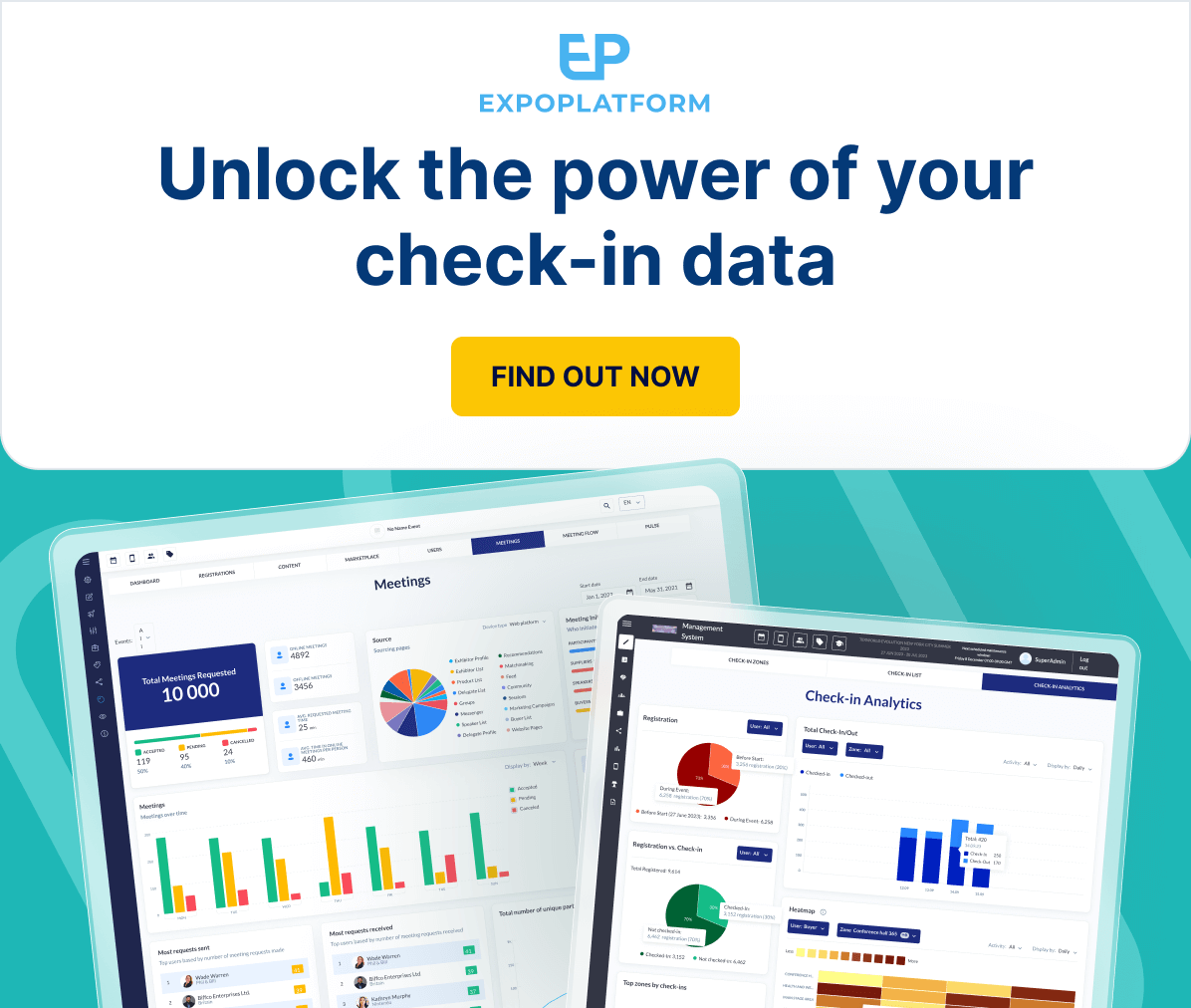
Understanding attendee flow and engagement is critical to assess your event’s success.
That’s why we have revamped our Check-in Analytics page to provide a clearer, more synchronised view of your check-in/check-out data.
Say goodbye to deciphering complex reports. With user-friendly graphs and an intuitive interface, you can easily analyze visitor traffic data at your shows.
Find out more below ⤵️
Check-in Analytics
What is it?
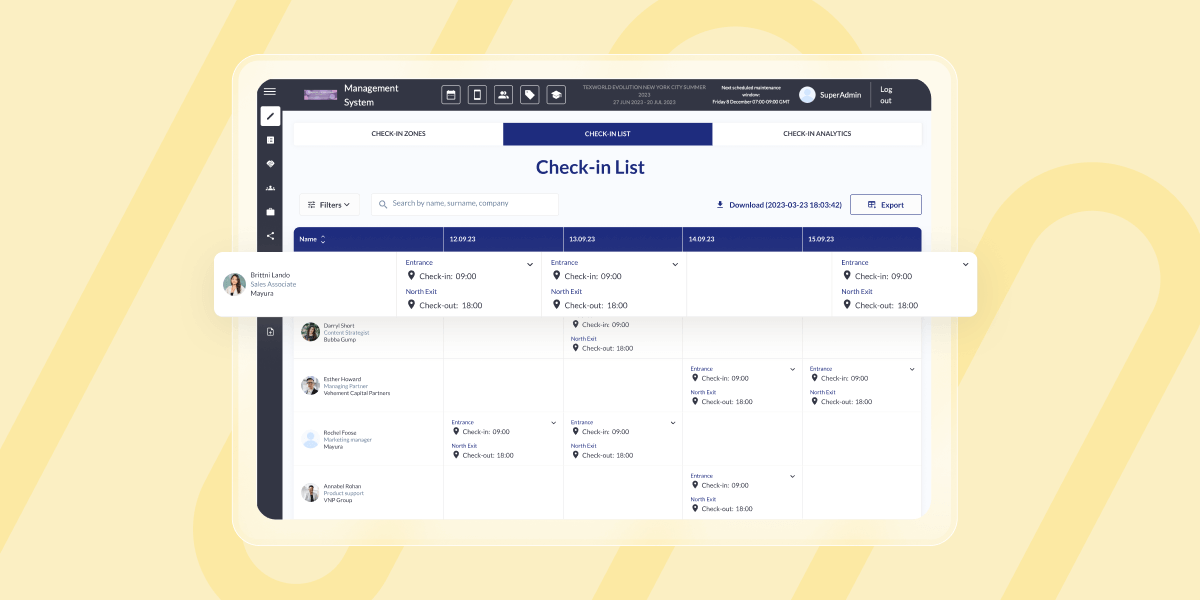
Check in Analytics page has been enhance to display the Check-In/Out data in a more synchronized manner so that it becomes easy for the organiser to read and interpret the data better. This page has 5 graphs that represents data
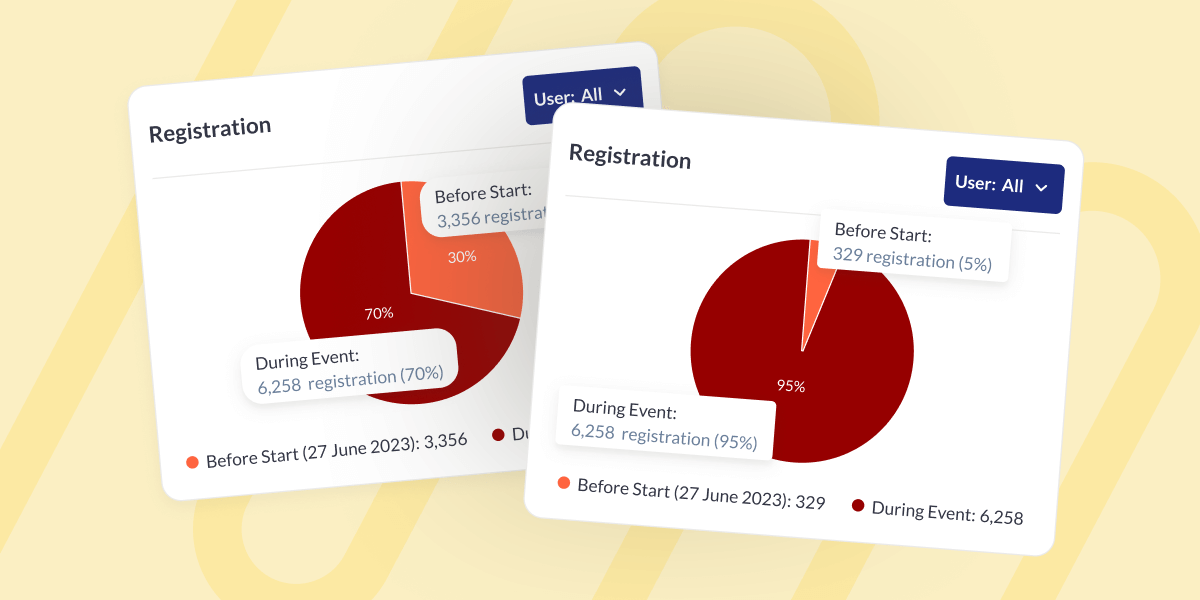
1. Registration: The registration Pie Chart illustrates registration details both before and during the event days. Organizers can filter registration data based on user categories.
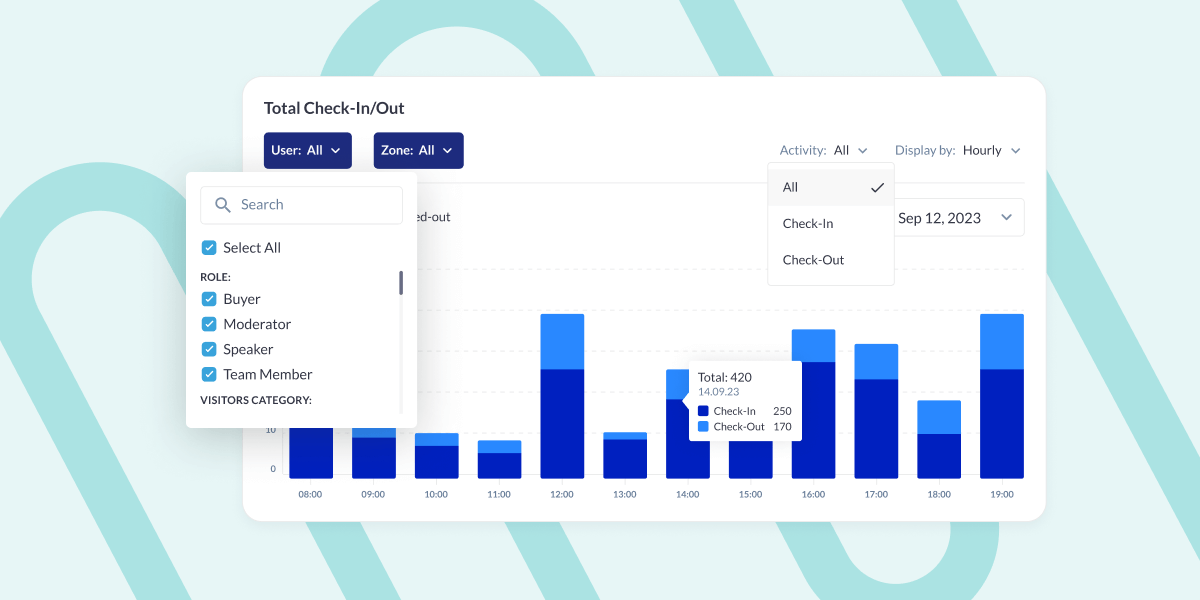
2. Total Check-In/Out: This bar graph shows the details of the users who have checked in/out from the event.
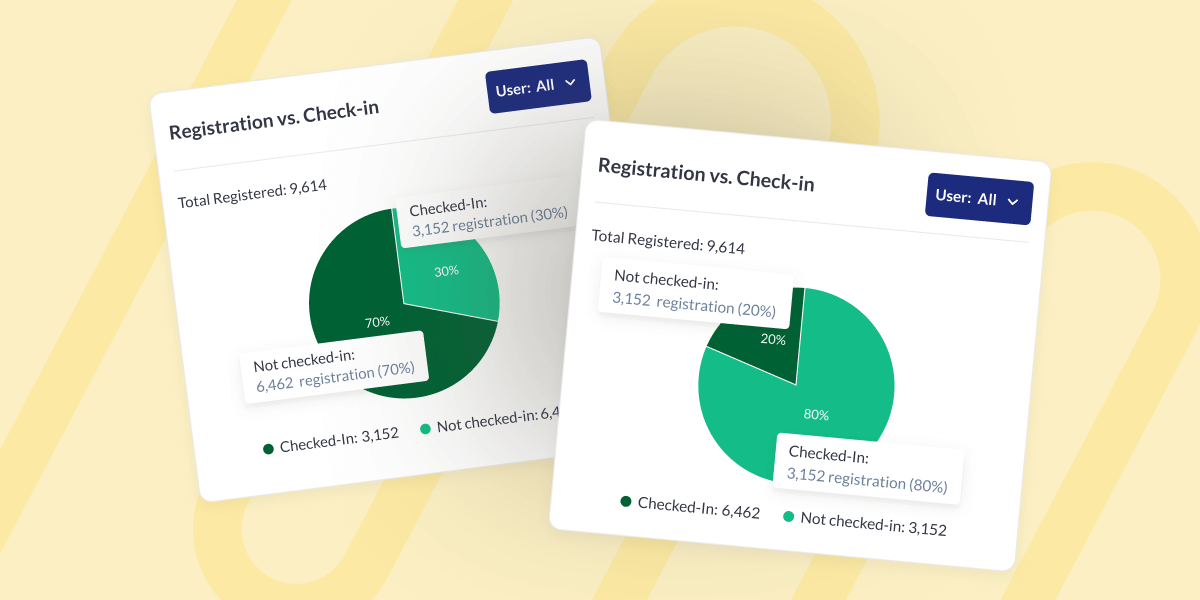
3. Registration v/s Check-In: The pie chart presents the total registration count, indicating how many registered users have checked in at least once and how many have not checked in at all.
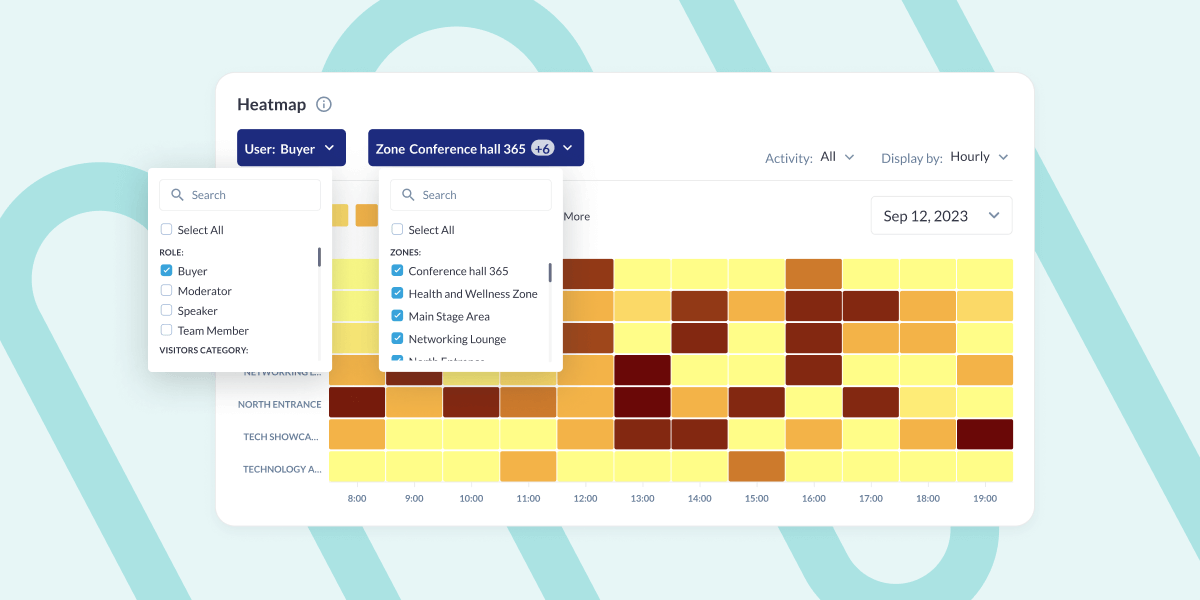
4. Heatmap: Provides a powerful visual analysis of check-in activity across your event space using a 10-color gradient, where the darker shades indicate zones with higher concentration of attendees.
5. Total Check In/Out by Zone: This section displays information about the top 5 zones where the highest number of check-ins were recorded.
What are the benefits?
The enhanced Check-In Analytics page offers organizers a more intuitive interface, facilitating easier interpretation of graph data.
WHAT ELSE IS NEW?
1. Predefined list of Other locations for Sessions/Events
What is it?
In the Admin panel under /admin/events/config, a new setting has been included which allows organizers to create a predefined list for other locations, which can be used for both sessions and exhibitor events, akin to the functionality available for meetings (Other Location).
In the Sessions and Events creation or editing page, a selector is integrated to pick options from the predefined list for Other locations. This selector will be accessible when ‘Other location’ for session/exhibitor events is enabled.
On the frontend, in the Exhibitor Event creation/editing interface, the system will check if the Organizer permits the use of ‘Other location.’ If allowed, the Exhibitor can choose from the predefined list of Other locations.
What are the benefits?
Ability for the organiser to add list of predefined location which can be selected while configuring Sessions and Exhibitor Events
2. Improvement in Other Location for Session/Ex Events
What is it?
Improvements made in the logic of selecting Other Location for Session and Ex. Events. Now the organsier has the option to select from the predefined list of Other location and simultaneously can add a custom value to the alternate address field.
Introduced a settings option in the Admin panel to allow a combination of selecting from a predefined list or typing a custom location/address for Session/Exhibitor event on session edit page.
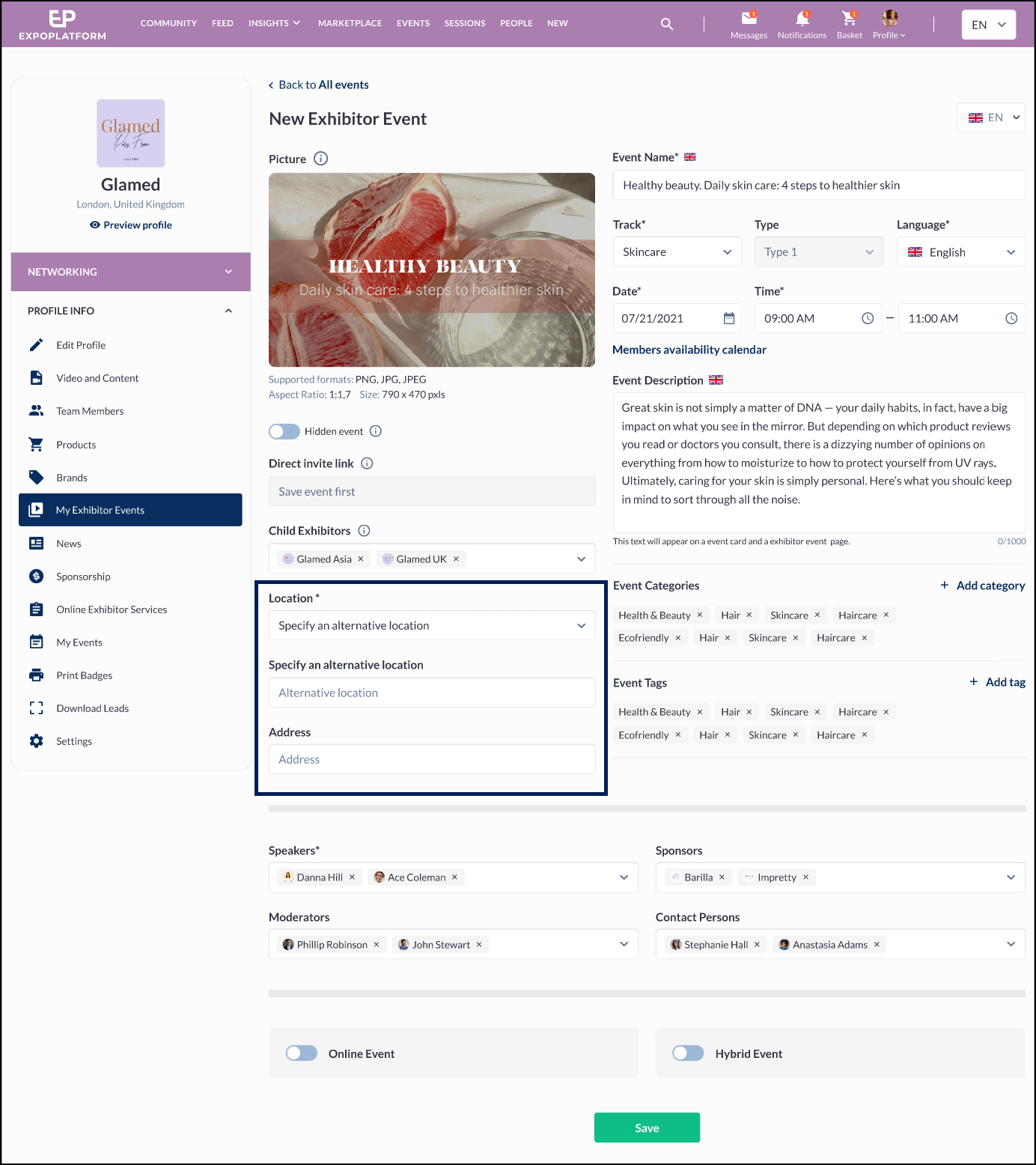
The “Session location” section is categorized into two groups: “Floor plan locations,” “Predefined Custom locations,” and “Specify an alternative location.”
When the organizer chooses “Specify an alternative location,” two input fields appear: one for specifying the alternative location and another for the address (if enabled by the organizer in the settings).
What are the benefits?
Ability for the organiser to add list of predefined location which can be selected while configuring Sessions and Exhibitor Events
3. News Export
What is it?
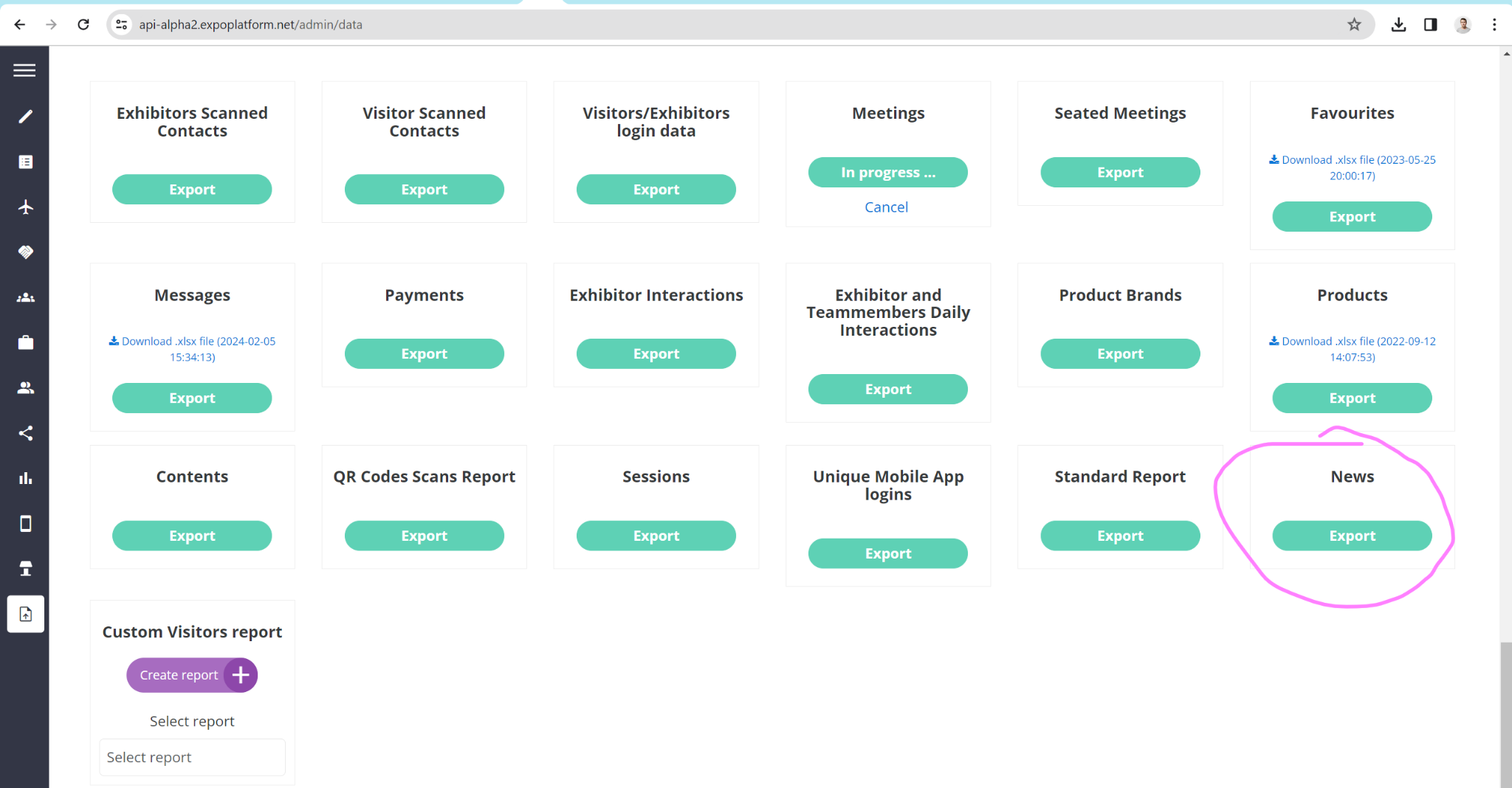
In Admin Panel /admin/data, a new report has been included that downloads the News data. This report includes all the relevant information related to the news article
Note: Language of data in the generated file depends on language selected on Exports page.
What are the benefits?
The capability to export News Data in a structured format provides the benefit of effortless sharing, analysis, and archiving of news information for organizers.
4. Multi-Language: New Website builder
What is it?
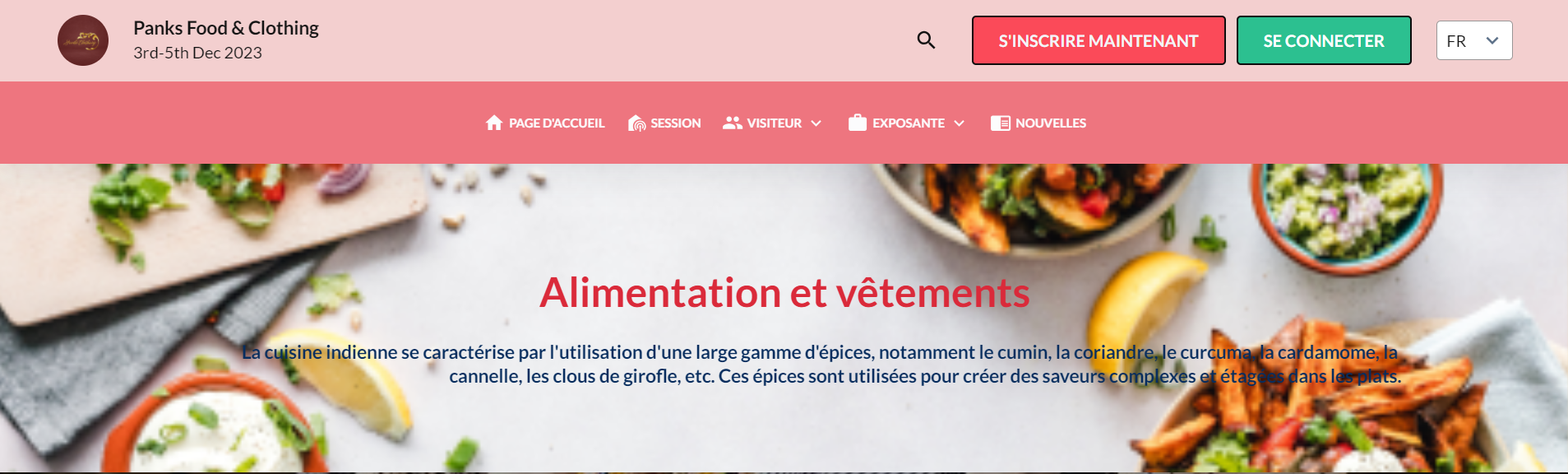
Now we have an option of setting up the event in multi-language on New Website builder as well. It works the same way as it works on our legacy builder.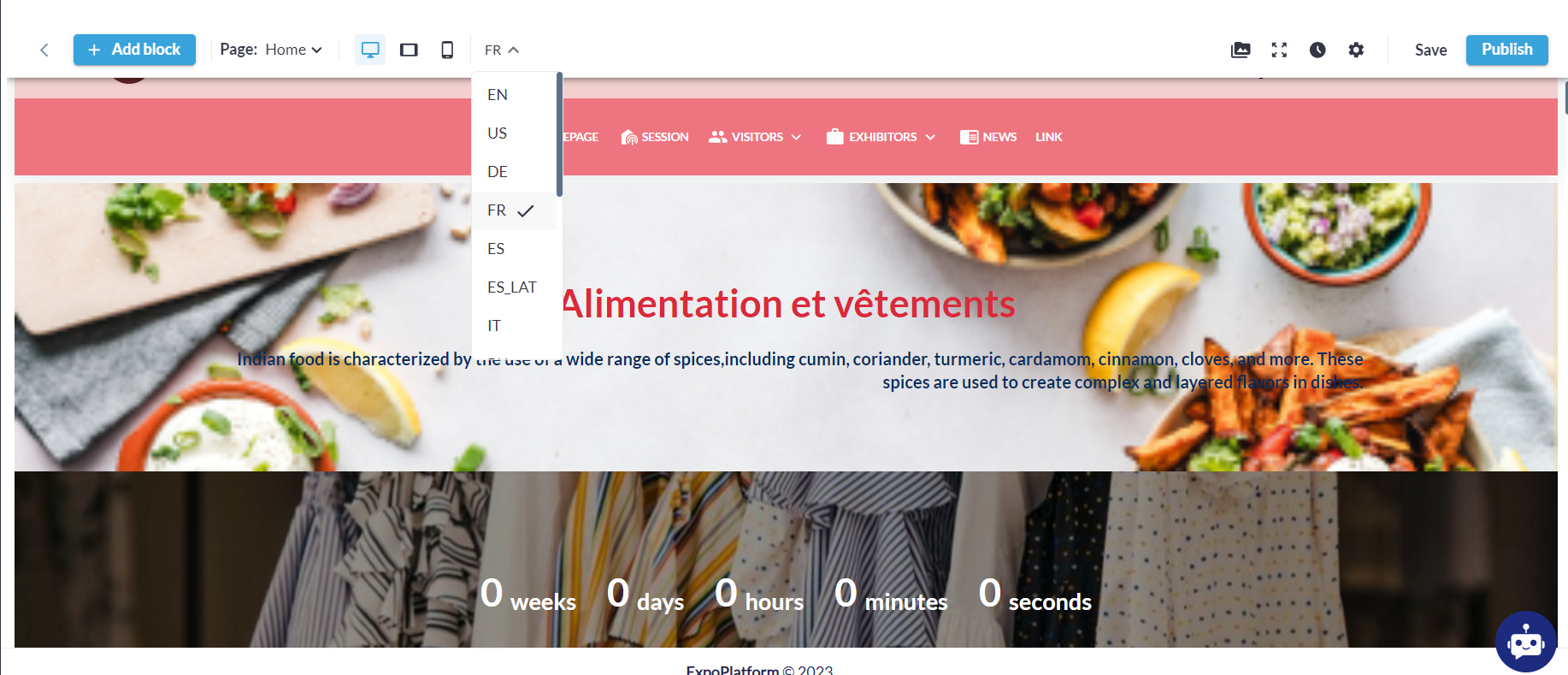 By default, all blocks are synchronized across all language versions. Any addition, removal, or editing of a block reflects in all versions. However, the text content, including translations, fonts, and styles, can be customized independently for different versions. This allows users to use different words, styles, or hyperlinks for each version while keeping the blocks and their settings consistent.
What are the benefits?
Capability to configure events in multiple languages, offering flexibility and customization to cater to diverse audiences.
5. Web Builder Stage 3: Title and Sub-Title Block
What is it?
In the new website builder, the Title and Subtitle blocks were absent, which were available in the legacy web-builder. The team has now incorporated the Title and Subtitle block under the Element block in the new website builder as well.
Organizers can create this block with or without a background image, which can be added from general settings.
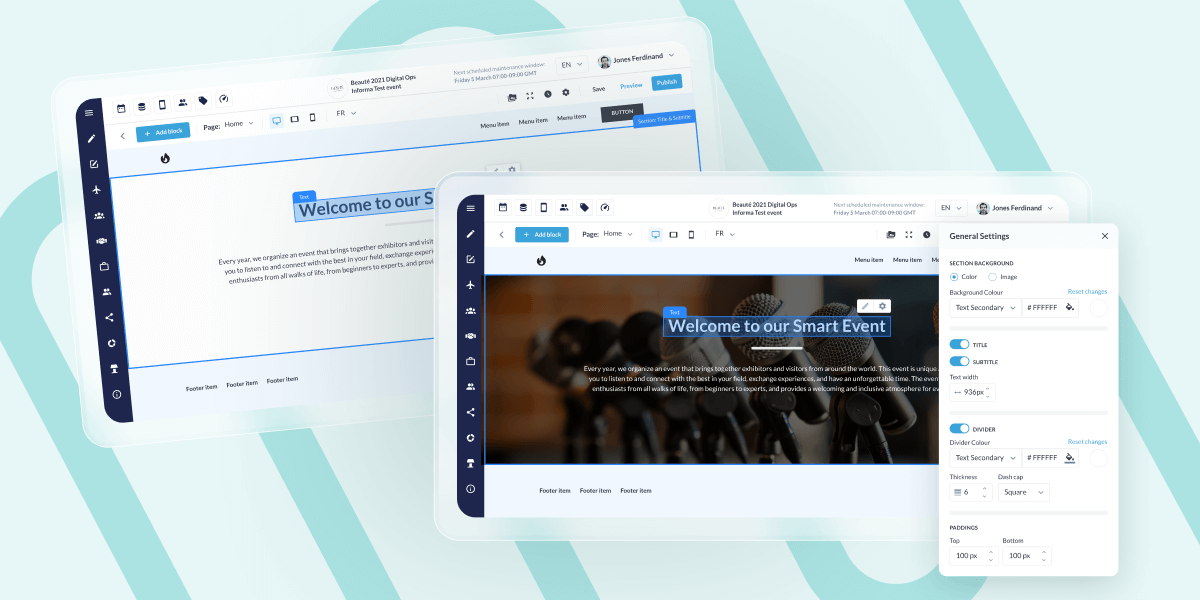
The Title and Subtitle block offers six different appearance options:
- With Title and Subtitle together
- Without Title
- Without Subtitle
- Without Title and Divider
- Without Subtitle and Divider
- Without Divider
What are the benefits?
Offers enhanced customization options for the websites, providing organizers with greater flexibility and creativity in designing their pages.
6. Ability of User to view and filter exhibitors based on whether they have exhausted their allocation of confirmed meetings
What is it?
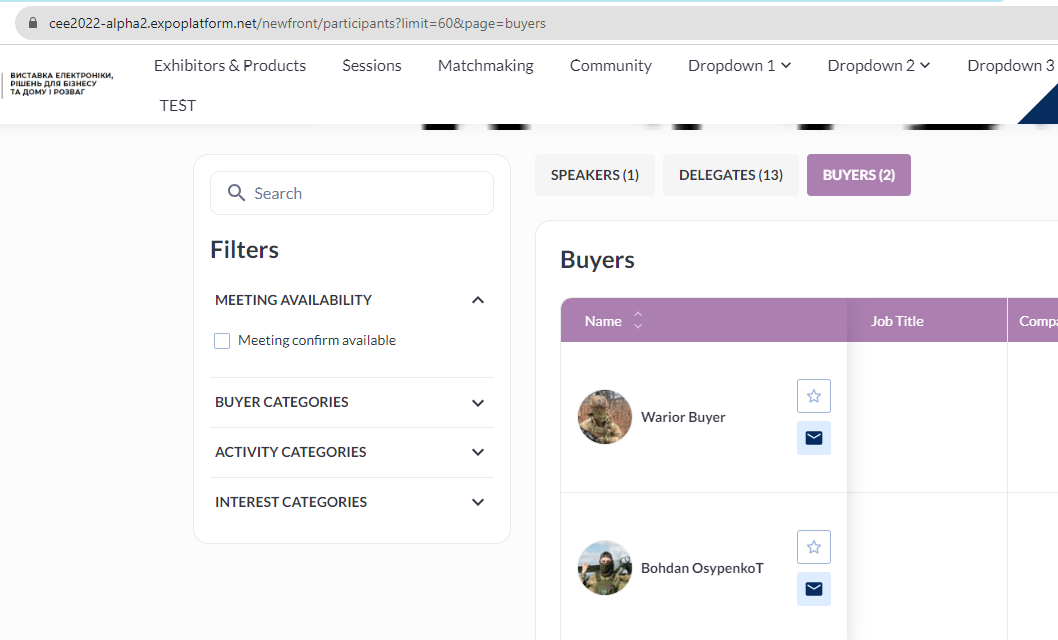
This setting allows users to filter out details of users who have not reached the allowed limit of confirmed meetings set under User Category Settings.
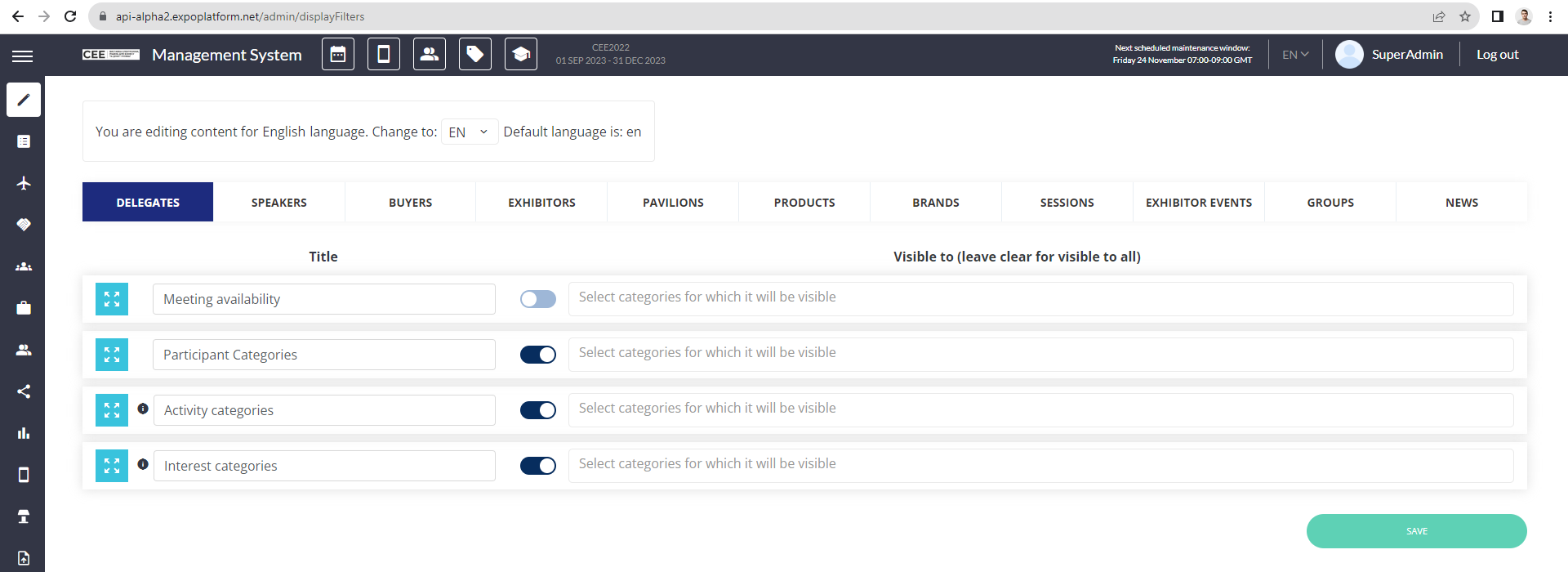
A new filter, Meeting Availability, has been added under Display Filter Settings for all users. When enabled, it will only list users who have not reached the allowed limit of confirmed meetings.
Both online and offline meeting confirmation limits is factored in.
Default State: Off
Team members inherit meeting limits set for their exhibitors
What are the benefits?
Simplified filtering to identify users who have not reached their confirmed meeting limit.
7. Meetings: Analytics New UI
What is it?
In Admin Panel under Analytics → General, a new tab added that records all the analytics around meetings.
This tab can be enabled and disabled from Module Management → Backend → Analytics → Meetings
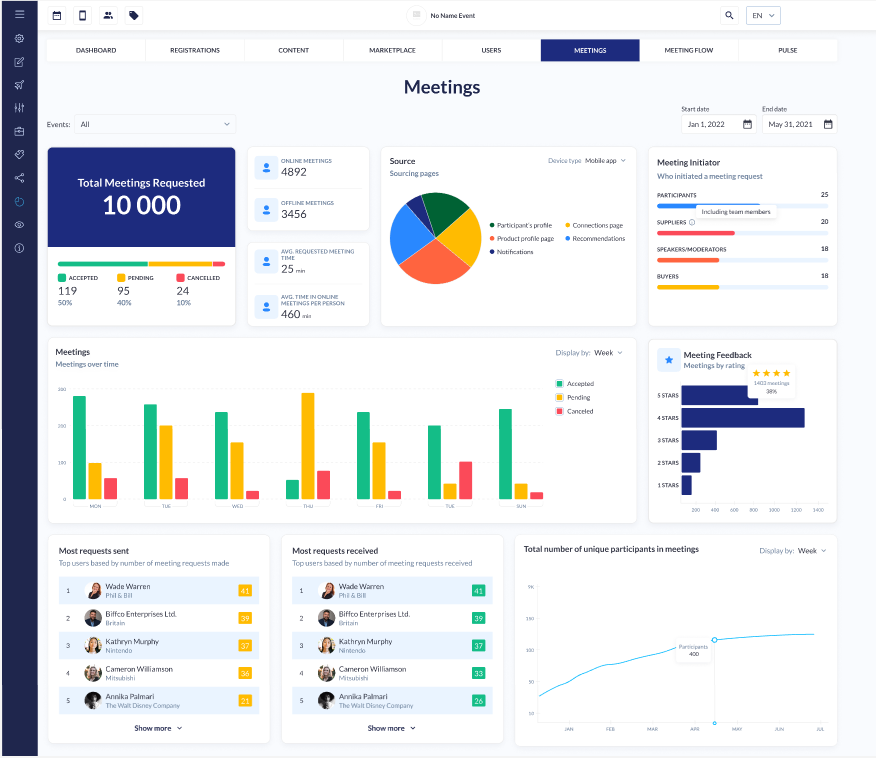
The meeting Analytics page includes details
- Filter for Date Range and Events
- Total meeting requests with additional breakdown indicating the number and percentage of accepted, pending, and canceled meetings.
- Count of Online Meetings and Offline Meetings(including table meeting)
- Avg request meeting time
- Avg time spent in Online Meetings per user
- Source: Capture the source page from where the meeting is scheduled/initiated.
- Meeting Initiator and details of Meetings which has been rated
- Leaderboard, show the details of the user based on ‘Most Meeting Requests Sent‘ and ‘Most Meeting Requests Received’
- The system displays the total count of unique participants in the meeting
- In the case of auto-confirm meetings, pending meeting details are not visible or displayed for that event
- If a participant holds multiple roles and schedules a meeting, it categorizes all meetings under their highest role
What are the benefits?
The Admin Panel provides comprehensive data and analytics for the scheduled meetings at the event.
8. Prefilled meeting info
What is it?
To address the challenge of repeatedly filling in meeting details, we’ve introduced new settings that allow users to save default information for the meeting edit page. This information can then be utilized when booking future meetings, streamlining the process.
This feature is exclusively available on the New Flow for Regular meetings. While scheduling the initial meeting, users can simply click on the “default meeting info” button to save the details for the fields on the meeting request page.
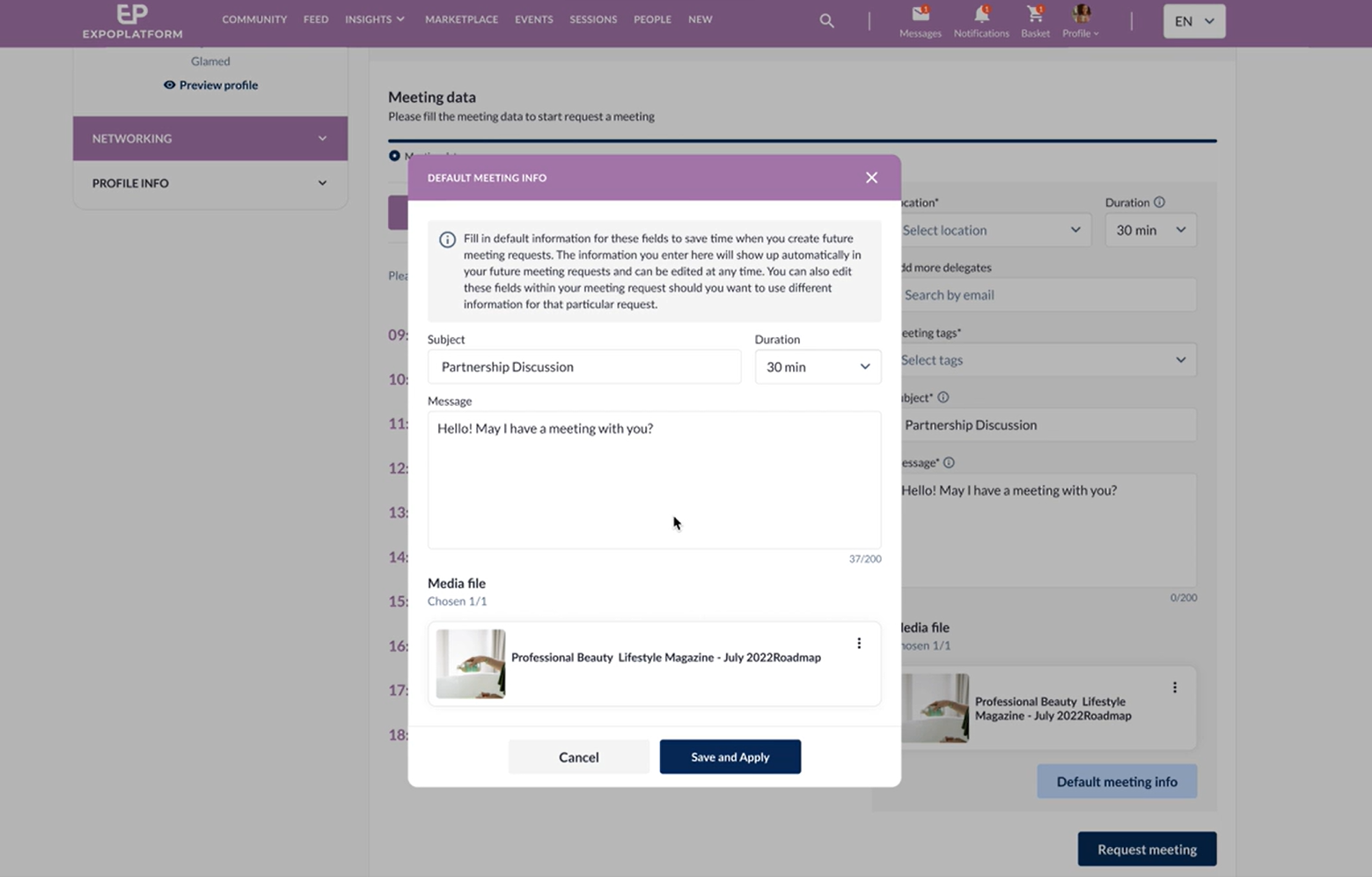
Subsequently, for all future meetings, these fields will automatically appear prefilled for the user. The field in the default meeting info tab, includes Subject, Message, Duration, and Media file, and can be modified by the user at any time.
Additionally, users can configure the Default meeting info details from their Profile Info >> Settings >> New Tab Default meeting info. (**this tab is only visible when the new flow for regular meetings is enabled.)
What are the benefits?
Eliminates the need to repeatedly entering the same details while booking a meeting.
9. Adding a customer service button to “…” actions in the exhibitor/ visitor list
What is it?
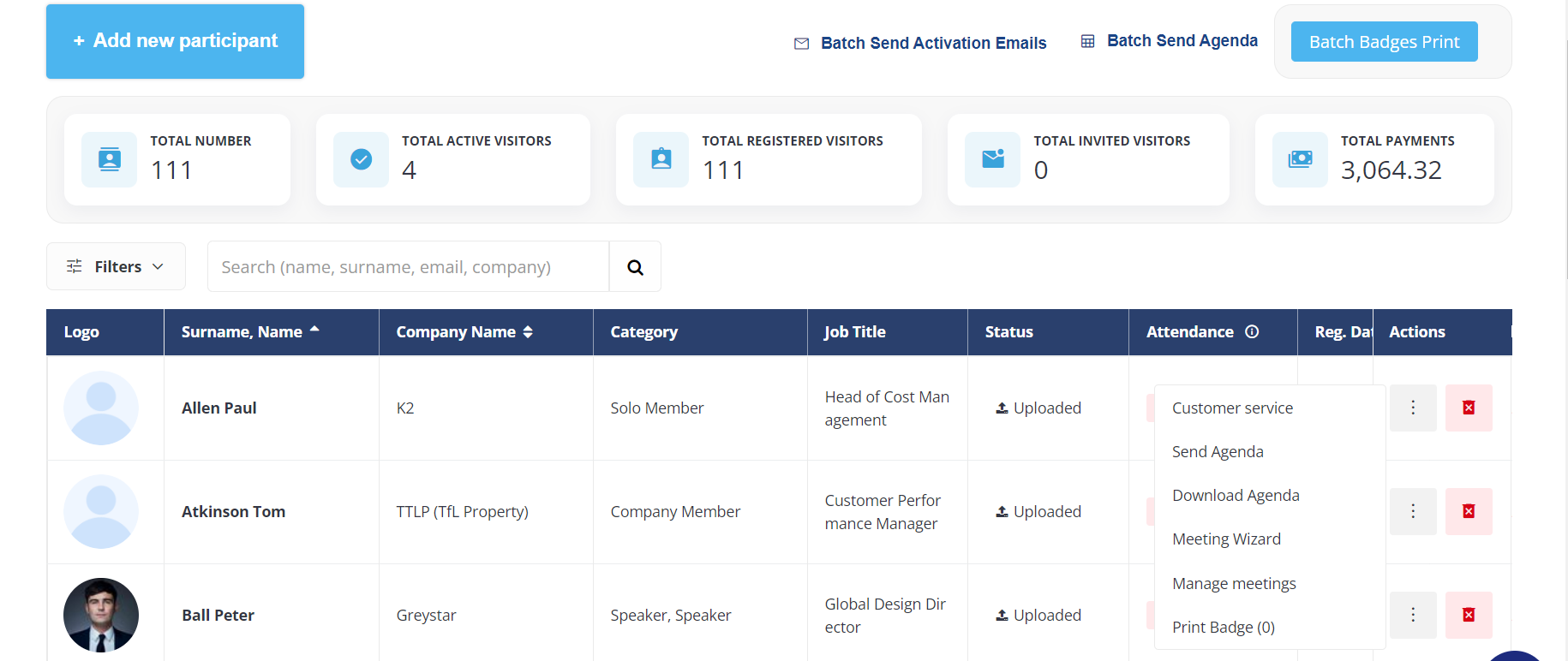
We have implemented the Customer Service button on the Exhibitor and Participants page on Admin Panel. This setting will exist under 3 dots menu located on the far right-hand side of the screen.
It allows organizers to directly impersonate any user profile from the Exhibitor/Participant list page, eliminating the need to navigate to the user edit page on the admin panel first.
What are the benefits?
This feature enables organizers to seamlessly impersonate any user profile directly from the Exhibitor/Participant list page.
10. Changing website language based on the browser’s language
What is it?
For multi-language events, the website or registration page by default opens in the default language set for the event.
To enhance users’ experience, we’ve implemented a functionality that automatically detects the browser language of the user and displays the website in that very language, provided the event content is available in that language.
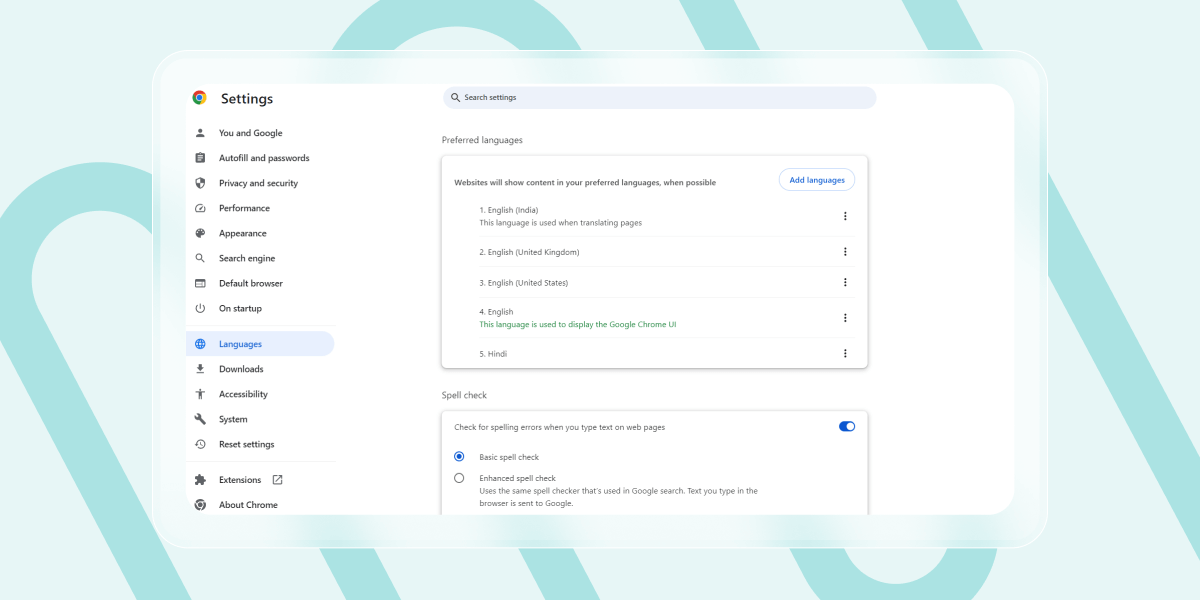
The user always has the option to manually switch to a different language using the frontend language selector.
What are the benefits?
Users no longer need to manually select their preferred language for viewing website content, saving users time and effort.
11. Add badge Bar Code and QR code variables to the campaign
What is it?
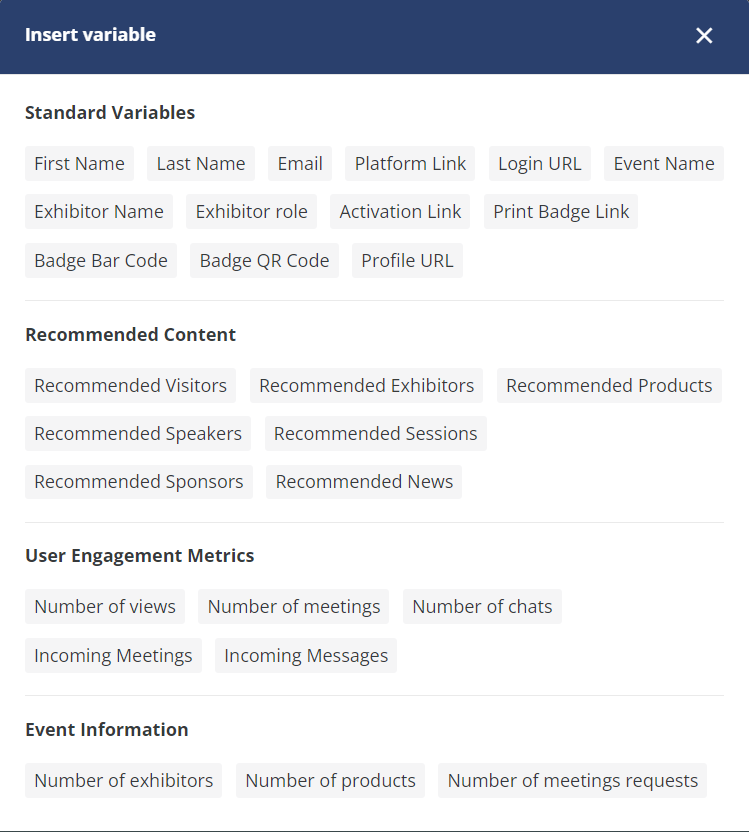
We’ve integrated Badge Bar Code and Badge QR code variables into the Campaign templates, simplifying the process for organizers to distribute badge codes (Bar/QR) to end users using the campaign module.
These variables are now available under the Standard Variable section.
What are the benefits?
Effortlessly send badge QR/Bar codes to users through the Campaign Module, enhancing convenience and efficiency in managing event badges.
12. Parent Exhibitor Name Column added to Meeting Report
What is it?
A new column Parent Exhibitor is added to the meeting export report under Admin Panel →Data → Import/Export → Meeting Report.
The column contains name of parent exhibitor, whose child exhibitor or its Team Member has/had a meeting.

If no parent exhibitor is related to the Initiator/Receiver side meeting, the respective cell is empty.
What are the benefits?
Provides enhanced insight of exhibiting company with which the is meetings scheduled