 Find out what's involved



A kiosk that’s easy to operate and retrieves information without hassle is a great value-add to tradeshows.
That’s why we have implemented several improvements to make scan, search and registration at kiosks better than ever.
Here’s an overview of the new kiosk upgrades:
- Display more search results: The kiosk now shows more relevant results while searching user details through name or email. Earlier, the search results were limited to five variants.
- Scan external bar codes and QR codes: If organiser is using external QR code or bar code for user badges, it can be scanned and user can be checked in using kiosk.
- User-friendly registration: Conditional logic is added to kiosk registration which creates an easier registration flow for multiple co-located events. Visitors will see only those form fields for the event they select – making it quicker to register and check-in.
A detailed explanation of all the updates ⤵️
Search improvements for kiosk mode: onsite
What is it?
Pagination added in case there are more than 5 relevant searches when user details are being searched by name or email in Check-in Kiosk Mode.

What are the benefits?
- Ease in search of user data while using Kiosk
- More refined results
External QR/Barcodes scan in Kiosk
What is it?
Ability to recognise the external Barcode and QR code in Kiosk mode.
Admin Panel Setting: Enable external bar/QR code from Registration Settings → Badges →Category/Role of Participants
User should be assigned with external bar/QR code on ExpoPlatform if data is being pushed via API.

What are the benefits?
While searching for users onsite, the kiosk can now scan external Bar and QR codes used for user badges.
Use Conditional Logic in Kiosk Builder Registration
What is it?
Kiosk registration form will have the same conditional logic added as we have set for the Visitor registration pipeline under Registration Setting.

What are the benefits?
- User-Friendly Onsite Registration in case of multi-event
- Prevent making the Onsite form lengthy for users as specific questions can be listed for specific categories of user
What else is NEW? ?
Here are the other product releases of June ⤵️
1. All Meeting Tracking
What is it?
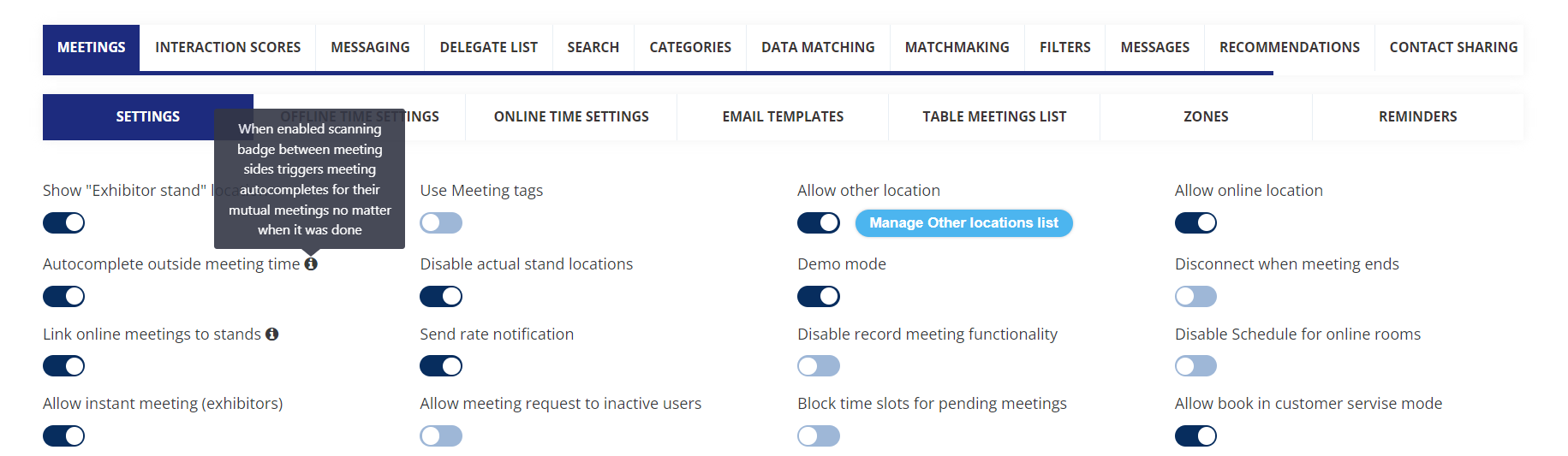
All confirmed meetings will be marked as autocomplete when meeting participants scans badges of the meeting participants.
Admin panel setting: Enable toggle Autocomplete outside meeting time under Networking & Matchmaking → Meetings
Default State: Off
Only confirmed meetings between the user will be marked as autocompleted even if the meeting has happened outside the meeting hours
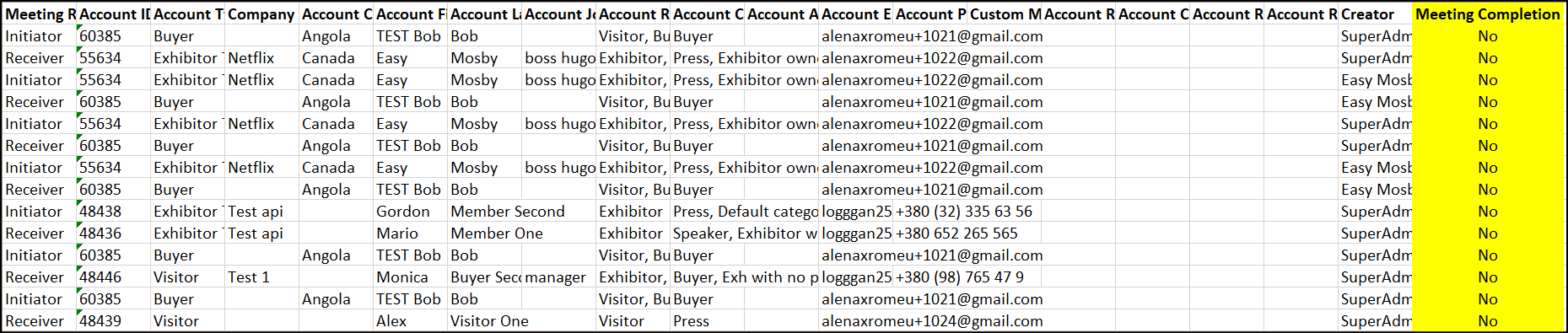
Meeting export report will have an additional column that records the details of completed meetings: Yes/No
What are the benefits?
Ability for the organiser to get and analyse the data of completed meetings
2. Improvement in Manage Meeting Section on Admin Panel
What is it?
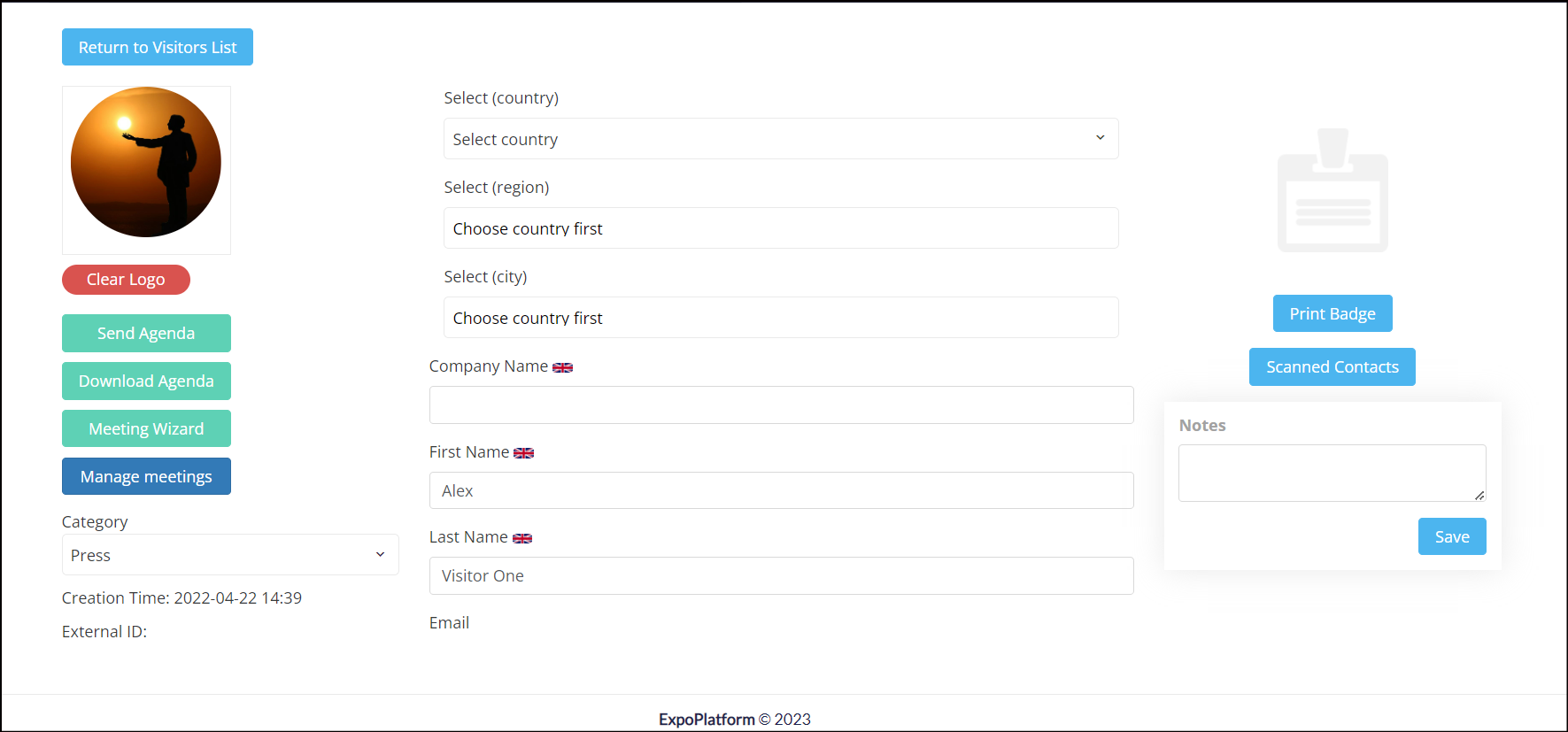
Participant name and picture on Meeting Wizard page on Admin Panel (/admin/visitors/meetingManage/XXXXX) is now clickable and will redirect to participant edit page on Admin Panel.

What are the benefits?
Easy redirection for the organisers to participants edit profile page on admin panel.
3. Assigning Admins to Visitors and Exhibitors
What is it?
The Admin Panel enables the organiser to designate event administrators to the Visitor and Exhibitor profiles.
Admin Setting: The Visitor and Exhibitor pages contain an assign Admin Column where an administrator can be allocated to each user.
On the Admin Panel, one of the options for filtering the data is Assigned Admin.

What are the benefits?
- Ease in managing and assigning Concierge Service
- Ease in handling end-user queries at organiser level
4. *Improvement* In Sponsor Banner for Mobile and Tablet View
What is it?
The online view of the exhibitor page on mobile and tablet now displays the page content as well as the banner, eliminating the display of the banner as the first view for the pages.

What are the benefits?
Assist in preventing the banner placed on the page from being displayed as the first view.
5. Adding Tooltips in the Admin Panel
What is it?
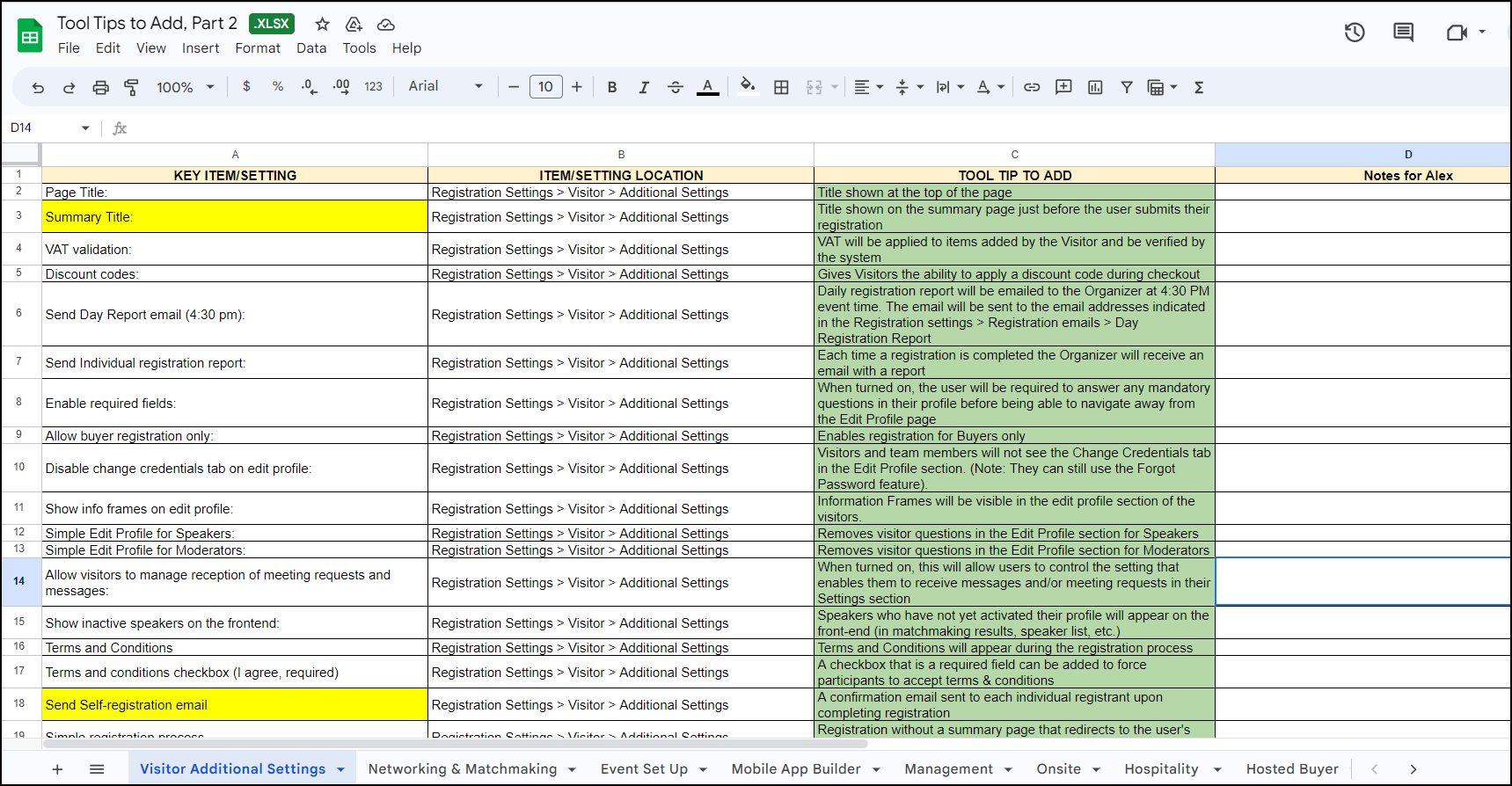
We have introduced tooltips for each feature on the Admin panel, making it easier for our event organisers to comprehend and use each element as needed.
Here is the list of tooltips that we have added across Admin Panel Tooltips
What are the benefits?
Ease in comprehending each feature and its usage as tooltips quickly illustrate how it can be used.
6. Added intro text to some Admin Portal pages
What is it?
Intro blocks have been added to some of the pages on the Admin Panel to help organisers understand what the page is about.

What are the benefits?
- User Friendly
- Ease in understanding what the page or setting is all about
7. Hide Reschedule button option
What is it?
Admin Panel has an option to hide the Reschedule button from the meeting card on both Web & App
Admin Panel Setting: Meeting page(/admin/appointments) has a toggle to disable reschedule meeting button from frontend for specific user category
Default Setting: OFF

What are the benefits?
Organisers have better control if they want to allow and disallow rescheduling of meeting at the user category level
8. Grouping contact sharing settings under different heads
What is it?
Settings on Contact sharing page are now further bifurcated into subheading for better understanding and clarity of data available under Download lead option on frontend

What are the benefits?
- User Friendly
- Better UI/UX
- Ease in understanding what data will be shared in Download lead